Using Navigation Audio and Phone Notifications Safely in a Rental Car in Istanbul
Published: October 10, 2026 • Reading Time: 7 min • Last Updated: October 10, 2026
Prepare your route, audio, phone mount and notification settings before driving to help keep your attention on Istanbul traffic. Learn how to handle route changes and device setup safely.
Contents
- How navigation and notifications affect attention
- Prepare the phone and route before setting off
- Enter the destination while parked
- Secure the phone without blocking your view
- Check audio, connection and battery
- Set navigation audio for the road
- Manage phone notifications during the trip
- Check the rental vehicle’s controls and connection
- When the route changes or directions are unclear
- A quick safety checklist
- Summary and next step
- Frequently Asked Questions
Istanbul rental car navigation safety involves more than choosing a route. Clear spoken directions, a securely placed phone and fewer interruptions can help you keep your attention on the road. This guide explains how to prepare the route and connection before moving, set navigation audio, manage notifications and stop safely when you need to use the screen.
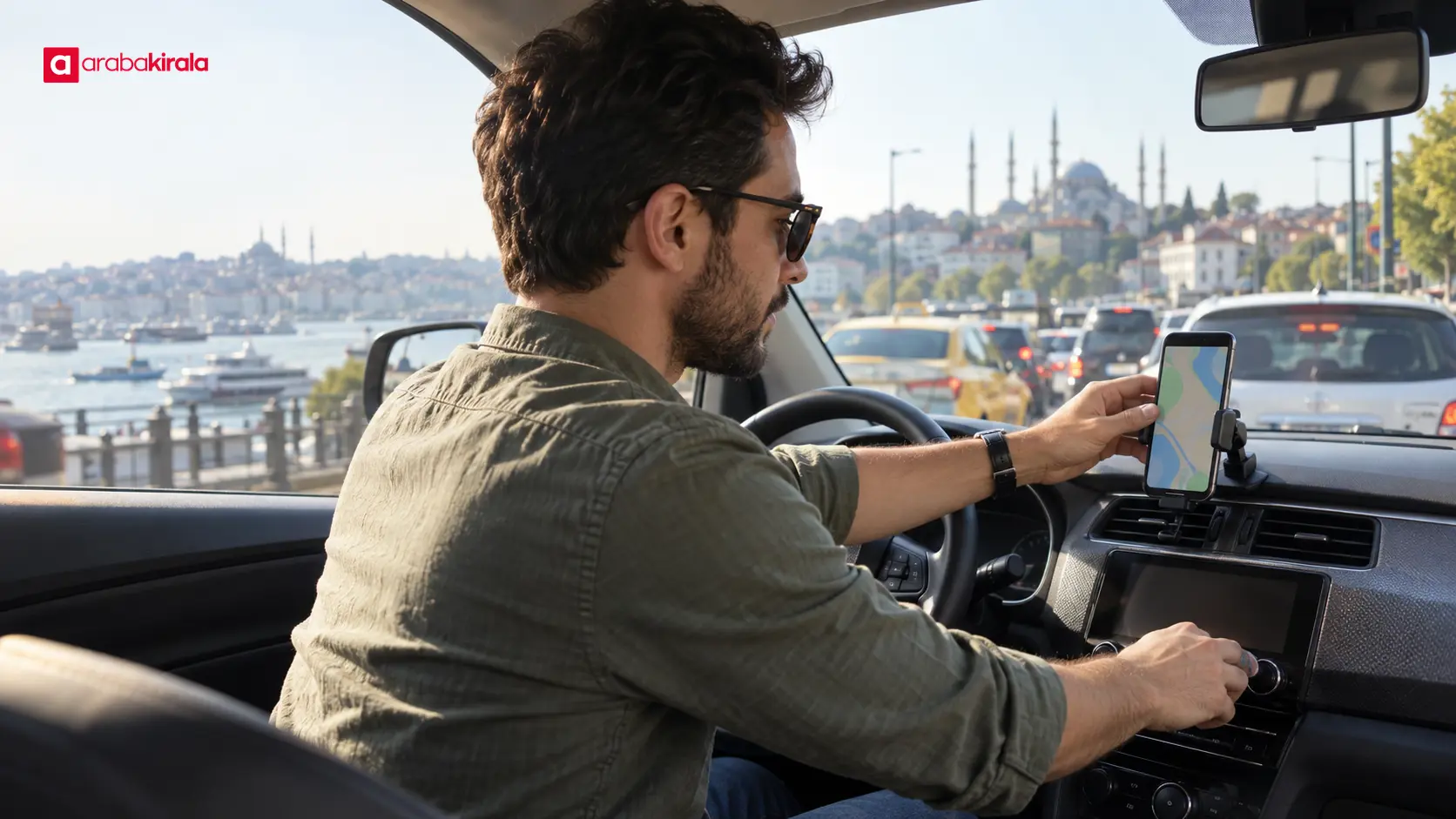
How navigation and notifications affect attention
Navigation combines location and road information on a screen with spoken prompts about turns or other maneuvers. Audio directions can reduce the need to look at the map, but they do not remove the need to observe traffic, road markings and signs. Entering an address, repeatedly checking the map or changing a route while moving can draw attention away from driving. A message or app alert may do the same, even if you glance at it briefly.
Busy traffic, closely spaced junctions, sudden slowdowns, construction and complex interchanges can all demand attention in Istanbul. No navigation app can guarantee that its route or traffic information reflects every change on the road. Treat the app as a source of guidance and continue to follow road signs, markings and safe driving decisions. If a prompt conflicts with what you see on the road, do not focus on the screen or make a sudden maneuver to follow it.
Prepare the phone and route before setting off
Enter the destination while parked
Check that the destination is precise. Streets, buildings and entrances may have similar names, and choosing the wrong point can send you to an inconvenient location. Select the appropriate entrance when the app offers one and review the route’s general direction. If you use route preferences involving toll roads, motorways or ferries, understand those choices before you depart; they may not suit every trip. If your destination changes, wait until you are safely parked to enter it.
Secure the phone without blocking your view
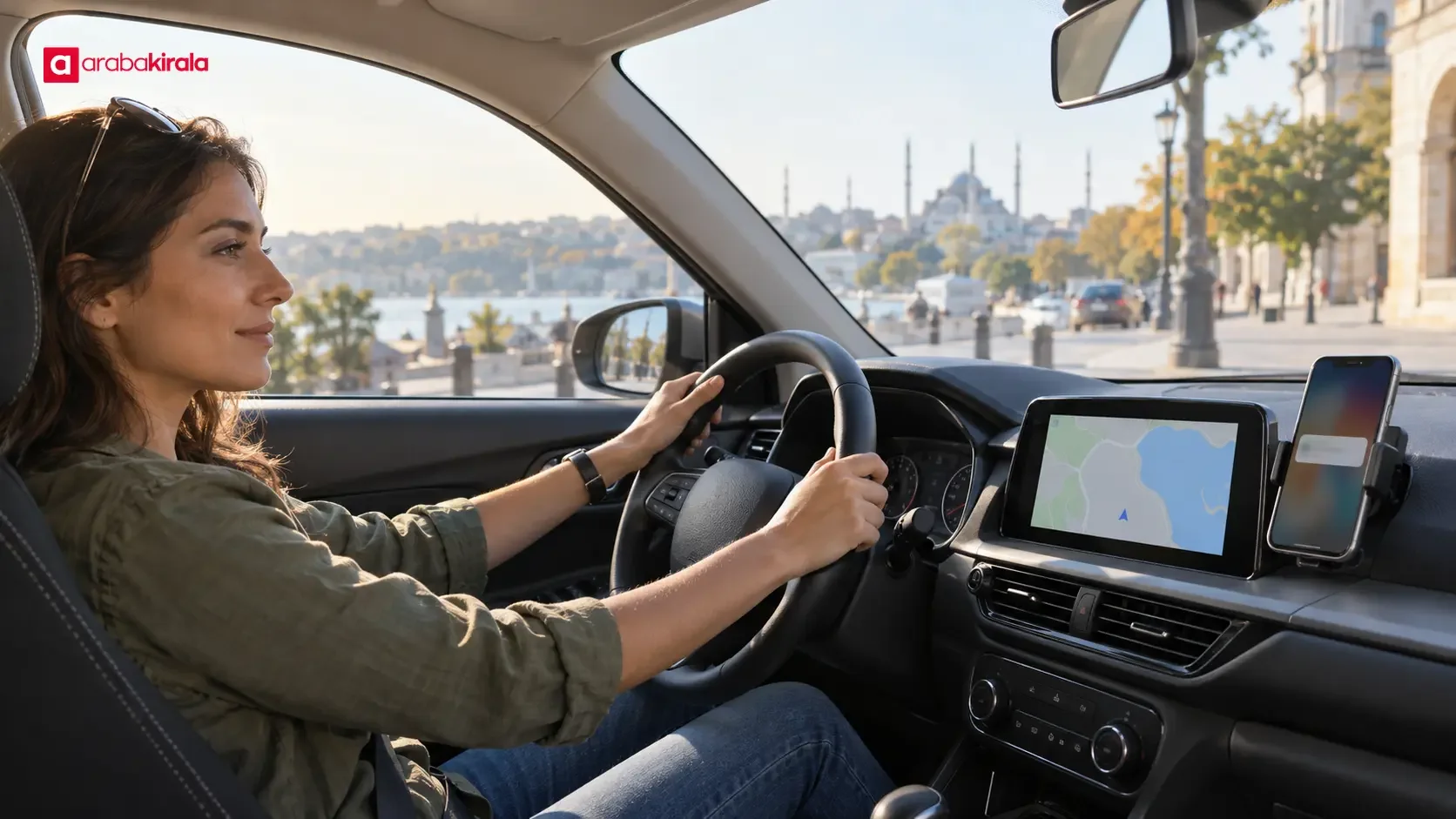
Place the device in a stable mount where it does not obstruct your view or access to the controls. Avoid positions that cover a large area of the windscreen, obscure mirrors or intrude on an airbag’s deployment area. Check the mount while parked so the phone will not fall during a turn or braking. A mount can reduce the need to hold the device, but looking at a screen still takes attention. Its position should support spoken directions rather than invite constant map checks.
Check audio, connection and battery
While parked, test whether directions will come from the phone speaker or the vehicle’s audio system. If you use Bluetooth or a cable, confirm that the selected audio source is correct and that spoken prompts remain audible over music or a call. Vehicle controls and connection methods vary, so check the vehicle’s manual or learn the basic controls during handover. Prepare a charging cable if needed and make sure the phone has enough power for the trip.
Set navigation audio for the road
Choose a volume that makes directions clear without masking the sounds of the road around you. If the volume is too low, you may be tempted to look at the screen more often; if it is too high, you may miss a horn, siren or other traffic cue. Test the setting while stationary. If the system lets you adjust navigation prompts separately from media volume, check those controls before driving.
Apps differ in the types of audio alerts they provide. You may hear turn directions along with traffic or speed-related notices. If you prefer to reduce some alerts, adjust the settings while parked rather than navigating menus as you drive. Spoken guidance can be useful around complicated roads, but it should not replace checking lane markings and the surrounding traffic.
Manage phone notifications during the trip
Messages, email and app alerts may appear or sound while you are driving. Trying to read their contents takes attention away from the road. Before leaving, consider using your phone’s driving focus, do-not-disturb or notification-silencing options. Names and availability differ by device. Test the settings while parked so you know whether necessary navigation prompts remain audible.
If you need to take a call, consider how the conversation may affect your attention and how the connection works. Hands-free features may remove the need to hold a phone, but a conversation can still demand mental attention. Avoid calls during complicated traffic, on narrow streets or while parking when you need to focus on the road. If you need to answer a message, change a route or adjust an app, stop completely in a suitable safe place. Do not handle the phone while driving.
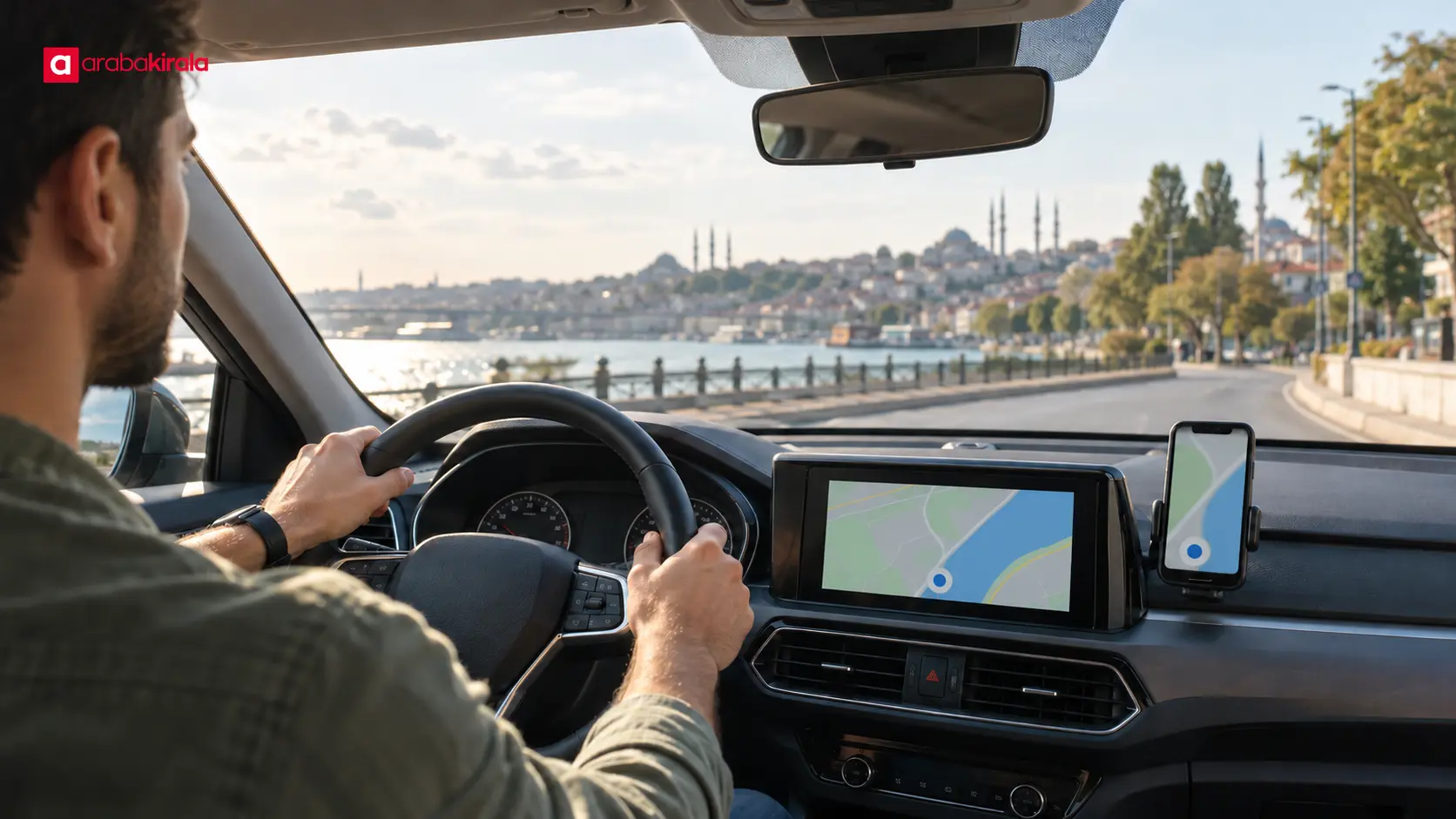
Check the rental vehicle’s controls and connection
Media screens, Bluetooth pairing and physical volume controls differ between vehicles. Before moving, learn how to connect your phone, select the source for navigation audio and adjust the volume. Complete any setup that requires working through a distracting menu while the vehicle is parked. If you need to know whether a particular connection feature is available or how it works in the vehicle, ask the branch you will rent from.
If you connect your phone to the vehicle, learn whether personal information may remain in the system and how to remove the connection when your trip ends. Review any options related to transferring contacts or call history, and avoid sharing data you do not need to share. Understanding the basic controls at handover can prevent menu searches on the road. Consult the vehicle manual for connection and audio instructions when it is available.
When the route changes or directions are unclear
If you miss a turn, do not brake suddenly or make an unsafe lane change. Continue in a way that follows traffic rules and allow the app to recalculate. If spoken directions stop, do not troubleshoot by studying the screen while moving. Check the connection, audio and route at the first suitable safe stopping place. If there is no safe place to stop immediately, keep your attention on driving and wait for a suitable opportunity.
Worrying about a missed prompt can lead to turning up the sound repeatedly or checking the map more often. Instead, learn the broad stages of the route before departure, such as the general direction, major junctions and the final approach. When the app changes the route, do not follow the moving map in a way that prompts an abrupt maneuver. Road signs and safe driving take priority over a delayed or unclear instruction.
A quick safety checklist
- While parked: Enter the destination, review the route and set notification preferences if needed.
- When placing the phone: Secure it and check that it does not block your view, mirrors, controls or airbag area.
- For audio and power: Confirm that directions are audible, road sounds remain clear and the phone has enough charge.
- On the road: Do not handle the screen, read alerts or make app changes while driving.
- If a setting needs attention: Stop fully in a safe place; ask the rental branch about vehicle-specific connection questions.
Summary and next step
Navigation is most useful in Istanbul when you prepare the route in advance and receive directions without unnecessary distraction. Secure the phone where it does not obstruct your view, set a volume that lets you hear surrounding traffic, silence nonessential notifications before departure and stop safely before using the screen. Test the vehicle’s audio and connection controls while parked. These simple checks help keep your attention on driving.
Frequently Asked Questions
Should I hear navigation through my phone or the car speakers?
That depends on the phone and the vehicle’s connection. The car speakers may make prompts easier to hear, but check the selected audio source while parked. Whichever option you use, keep the volume low enough to hear traffic around you.
What should I do if navigation changes my route in Istanbul?
Do not make a sudden maneuver or change lanes while looking at the screen. Continue in accordance with road signs and traffic rules, then let the app recalculate. Stop in a safe place if you need to check a setting.
Can I silence phone notifications completely while driving?
Your phone may offer notification silencing or a driving focus mode, though settings vary by device. Check that navigation audio still works before departure, and wait until you are safely stopped to read an important message.
Can I use navigation in a rental car without connecting my phone to it?
You may be able to use the phone’s own speaker and a suitable mount; the practical options depend on your device and the vehicle. Do not hold the phone while driving. Ask the branch you will rent from if you need information about that vehicle’s connection options.
Can I correct a missed address while the car is moving?
Do not use the screen to type an address or change your destination while driving. Stop fully in a safe place first, then select the correct location and restart the route. If you take a wrong turn, let the app recalculate rather than making a risky maneuver.
Legal Disclaimer: All content, articles and information on the Araba Kirala website are provided solely to inform users. No information shared on this website constitutes definitive advice or guidance. Araba Kirala Teknoloji A.Ş. and its authors cannot be held responsible for any direct or indirect damages arising from the application of information on the website. For all questions and requests regarding car rental, please contact the office from which you will rent your vehicle.