How to Prepare Navigation and Phone Connectivity in a Rental Car
Preparing navigation in a rental car involves more than entering a destination. You need a clear route, map access that suits the areas you will travel through, and a safe way to hear or view directions without handling the phone while driving. Sorting out settings after the car is moving can distract you and create avoidable stress. This guide explains how to prepare a route, check offline maps, understand phone-to-car connection options, and handle common problems before setting off. The exact equipment and menus vary by vehicle, so treat the steps as practical preparation rather than a promise about any particular rental car.
Confirm the destination and review the route
Enter the destination as precisely as possible. A venue, street, or business name may match more than one place, so include the city and area and check the map pin before accepting the result. Large venues may have separate public entrances, parking entrances, service roads, or drop-off points. The navigation pin does not necessarily identify the entrance you need. Check your itinerary or the destination's own directions for the appropriate access point.
Review the route preview while the car is parked. Navigation apps can offer different routes based on distance, estimated time, road type, traffic data, or settings such as avoiding toll roads. The shortest route is not automatically the most suitable one. Consider road conditions, planned stops, arrival timing, and whether the suggested route seems consistent with your journey. Looking at the overview helps you recognize major junctions and turns ahead of time. Navigation is an aid; road signs, lawful directions, and safe driving decisions remain essential.
Set the route before departure and avoid typing while the vehicle is moving. If you need to change a destination or investigate an alternative, stop somewhere safe first. A missed turn is not a reason to change lanes abruptly or make an unsafe maneuver; let the app recalculate when it can do so safely.
Prepare maps and phone settings
Download an offline map when useful
Mobile data coverage can vary along a route. If your navigation app supports offline maps, download the relevant area while you have a reliable connection. Check that the selected region covers the whole route, the download has finished, and the map is available within the app. An offline map can help display basic roads and support some navigation functions when data service is unavailable. It may not provide live traffic, current closures, or every search feature. Offline access is therefore a useful backup, not a substitute for current road information.
Check the map data itself as well as the app version. Updating an app does not necessarily update every downloaded map package. Confirm that the map covers the correct region and is recent enough for your planned trip. A download may fail if the phone has little storage space, so verify completion before leaving. Learn how to access the offline map in the app rather than discovering the controls after the signal drops.
Battery, cable, and notifications
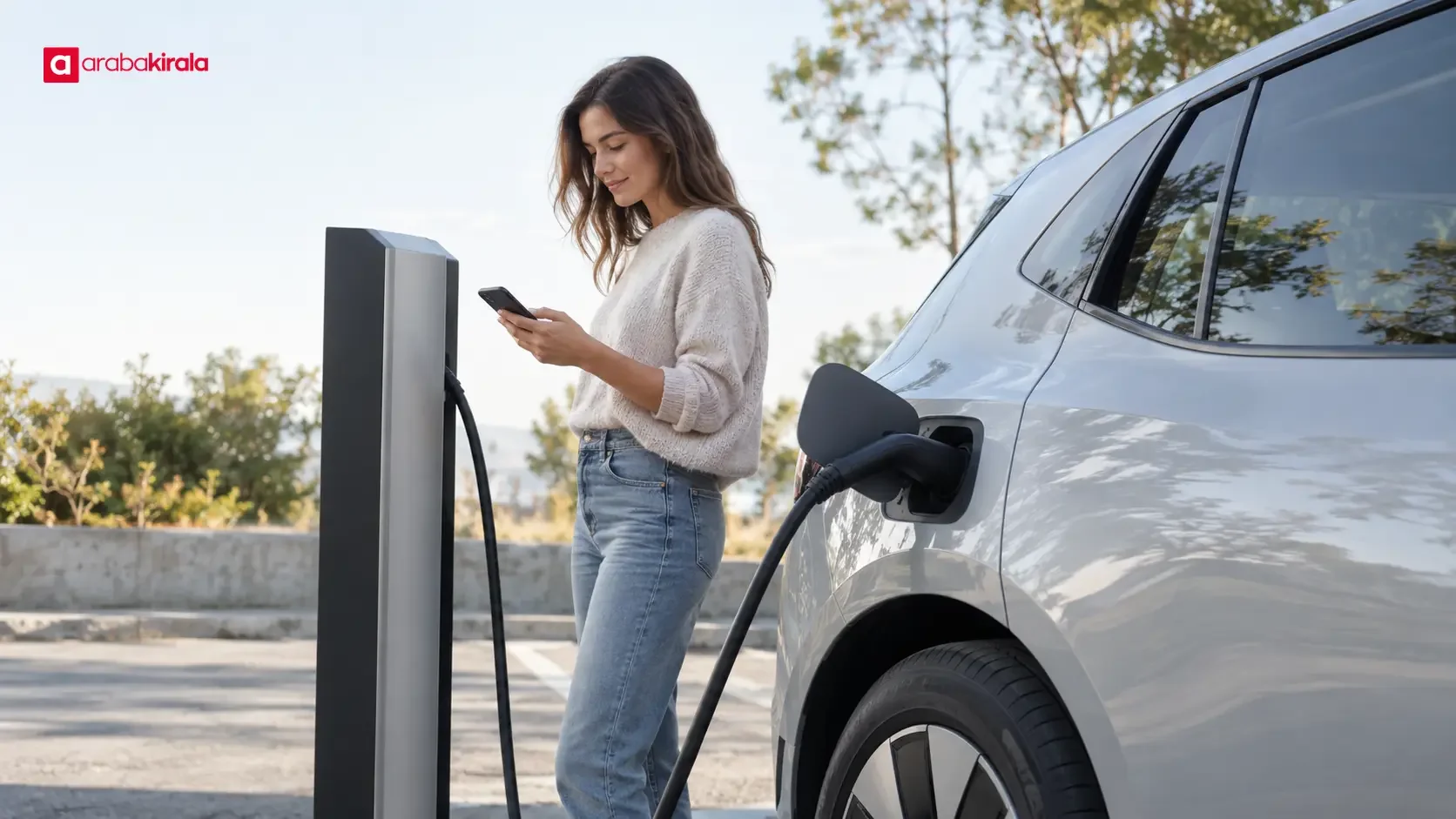
Navigation uses power through the screen, location services, and sometimes mobile data. Start with a charged phone and bring a cable that fits your device. Do not assume that a rental car has a particular charging port, wireless charging pad, or cable. Check the vehicle's available connections at pickup if charging access matters for your trip. If you plan to use a cable for data as well as charging, make sure it supports data; some cables only provide power. Test the connection while parked.
Calls and notifications can cover directions or pull your attention away from the road. Before driving, review the phone's focus or driving settings and silence notifications you do not need. Keep emergency contact preferences in mind when adjusting those settings. Try the navigation app's spoken directions and set a volume that is audible without drowning out important sounds around you. A stable audio setup reduces the need to look at the screen repeatedly.
Understand the car connection options
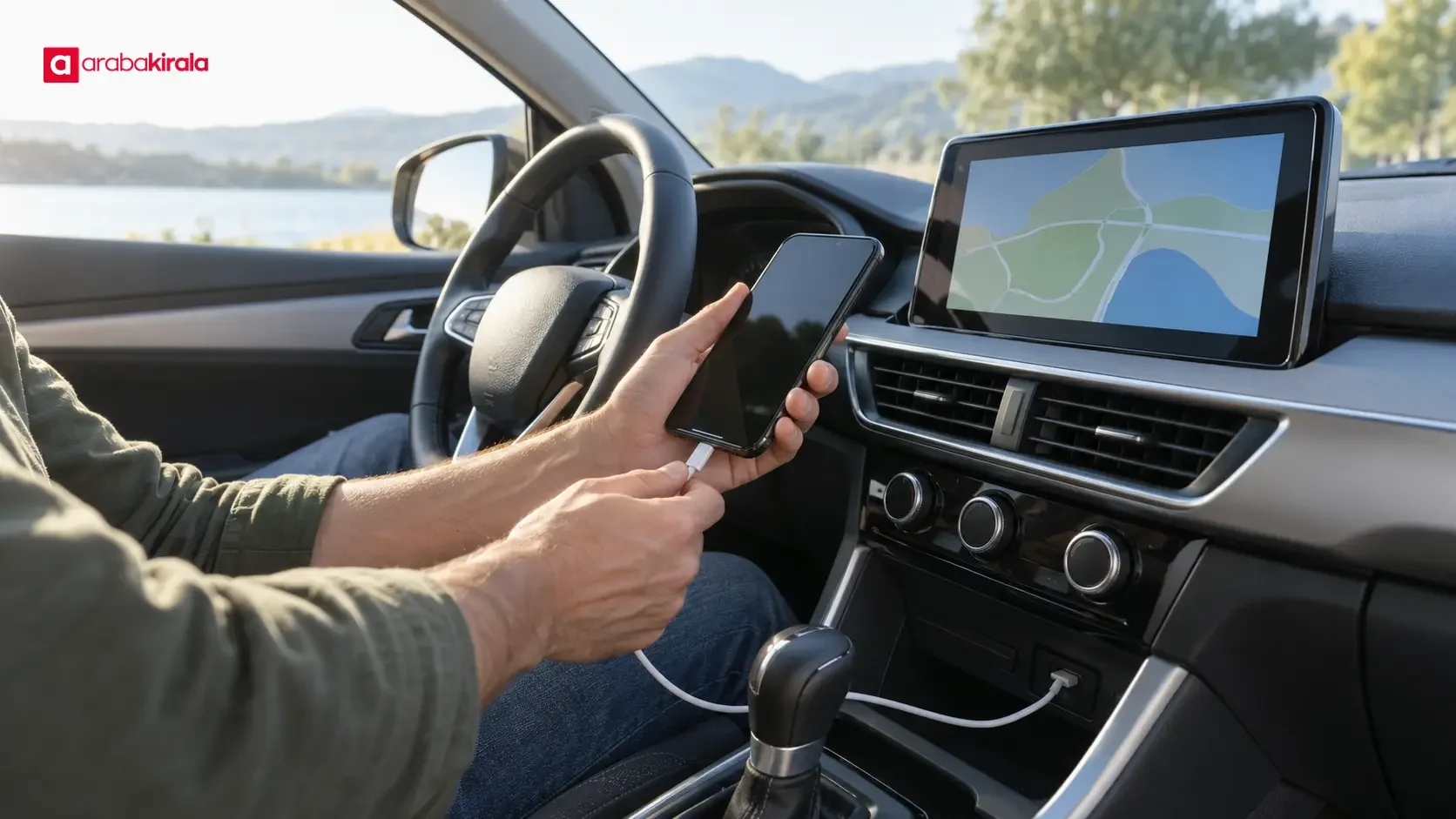
Depending on the vehicle, a phone may connect through Bluetooth, a USB cable, or a compatible infotainment system. Availability and behavior differ between cars and phones. At pickup, check the available equipment and consult the vehicle's instructions while parked. A Bluetooth connection that plays audio does not necessarily display map directions on the vehicle screen. Similarly, a USB cable may charge a phone without supporting data or screen projection.
During pairing, compare the device name shown on the car display with the one on your phone and follow the prompts. Read requests for access to contacts, calls, or messages before granting them. Navigation generally does not require every personal-data permission. Once connected, check which speakers will play directions, whether the guidance is audible, and whether the phone is charging. If the route does not appear on the car display, do not troubleshoot while moving. Retry while parked or use a securely mounted phone screen.
Consider privacy before pairing a personal device. At the end of the rental, remove the phone from the car's paired-device list and forget the vehicle in the phone's Bluetooth settings. If you signed into a personal account or saved a home or work address in the car system, sign out and clear those personal entries where available. Do this while parked. Removing the pairing helps prevent your device and personal details from remaining available to the next user.
Use navigation safely while driving
Choose a phone position that does not block your view, interfere with an airbag area, or leave the device likely to fall. A secure mount and spoken directions can reduce handling, but they do not make every interaction safe. Set the route, connection, and volume before moving. If you need to type, change settings, or inspect a detailed map, pull over in a safe place first. A vehicle screen also does not make it appropriate to operate every app while driving.
If an app instruction conflicts with a road sign, a temporary traffic direction, or conditions on the road, respond to the actual situation safely and lawfully. Map data may lag behind construction, closures, or temporary diversions. Do not make a prohibited turn, accelerate sharply, or cross lanes at the last moment just to follow a prompt. Follow posted signs and directions from authorized personnel, and allow the app to find another route when safe.
Plan for city trips and longer drives
For a longer journey, think about rest stops as part of the plan. An estimated arrival time does not account for your individual need to rest, and an app cannot assess whether you are fit to continue driving. If you feel tired, stop driving and take an appropriate break. Review practical route needs such as fuel, charging, and parking in advance. Business listings in a map app can be incomplete or outdated, so check important destination details through a reliable source.
Urban routes often involve one-way streets, complex junctions, and changing traffic. Lane guidance can help you anticipate an exit, but it depends on map data and should not override road markings or safe following distance. Saving the correct parking area or entrance before departure can reduce the need to search near arrival. When the route includes remote areas or travel across borders, plan for map coverage and mobile-data availability ahead of time. Check whether your app supports offline navigation in the relevant area and review your phone's connectivity settings before the trip.
Troubleshoot connection issues while parked
If the car does not recognize the phone, first make sure the vehicle is parked. Check that Bluetooth is enabled, the correct media source is selected, and the cable is fully connected. A cable that charges but does not transfer data may not support the function you want. Also check whether the phone is already paired or whether another device is occupying the active connection. Disconnecting and reconnecting, or restarting a device, should be done only while safely parked.
If audio is missing, check the app's guidance audio setting, the phone's media volume, and the car's selected sound source separately. Some systems treat calls and media as different Bluetooth functions. If the map shows an inaccurate location, check location permissions and services. Tunnels, covered parking, and tall buildings can affect location accuracy. Do not change settings while driving. If the in-car connection remains unavailable, use a securely mounted phone and a previously downloaded map as a backup.
What to check at vehicle pickup
If you plan to rely on a car's navigation or phone integration, ask which features are present in the vehicle you will receive and where to find the instructions. Screen projection, charging ports, cables, and navigation equipment vary by vehicle. Do not assume a particular accessory or function is included. If a specific feature is important to your plans, confirm it with the office handling your reservation before pickup. This is a vehicle-specific check, not a general statement about every location or rental.
Before leaving, make a brief parked test: see whether the phone is recognized, whether spoken directions can be heard, and whether the connection supports the function you need. Review the privacy prompts before linking personal accounts. It is also useful to learn how to remove the device pairing at the end of the rental.
Frequently asked questions
Is an offline map enough for navigation?
It can provide basic map access and may support route guidance without mobile data, depending on the app. Live traffic, new closures, and some searches may still require internet access. Test the app's offline features and confirm the downloaded area covers your route.
Do I have to connect my phone to the car?
No. Navigation can run on the phone itself. Connecting to the vehicle is an additional option when the car and phone support it. Mount the device securely, keep it out of the driver's view, and prepare the route before moving.
Bluetooth is connected, but I cannot hear directions. What should I check?
While parked, check the navigation app's voice setting, the phone's media volume, and the selected audio source in the car. Bluetooth may handle calls differently from media, depending on the system. Do not troubleshoot while the car is moving.
How do I remove my phone before returning the car?
While parked, remove the phone from the vehicle's paired-device menu and forget the vehicle in the phone's Bluetooth settings. Sign out of any personal account and clear saved personal addresses or history if you added them.
Final pre-drive check
Confirm the destination pin, download an offline map if useful, charge the phone, and test the cable and spoken directions. Set up any car connection while parked, secure the phone where it will not obstruct your view, and review the route before departure. Follow road signs and changing conditions, and stop safely before changing settings. For vehicle-specific navigation or connectivity details, contact the office handling the rental before you set off.
Legal Disclaimer: All content, articles and information on the Araba Kirala website are provided solely to inform users. No information shared on this website constitutes definitive advice or guidance. Araba Kirala Teknoloji A.Ş. and its authors cannot be held responsible for any direct or indirect damages arising from the application of information on the website. For all questions and requests regarding car rental, please contact the office from which you will rent your vehicle.