How to Check Navigation Data in a Rental Car
Published: October 26, 2026 • Reading Time: 7 min • Last Updated: October 26, 2026
Learn what destinations, paired phones, and personal details an in-car system may retain, and how to review and remove your own data before returning a rental car.
Contents
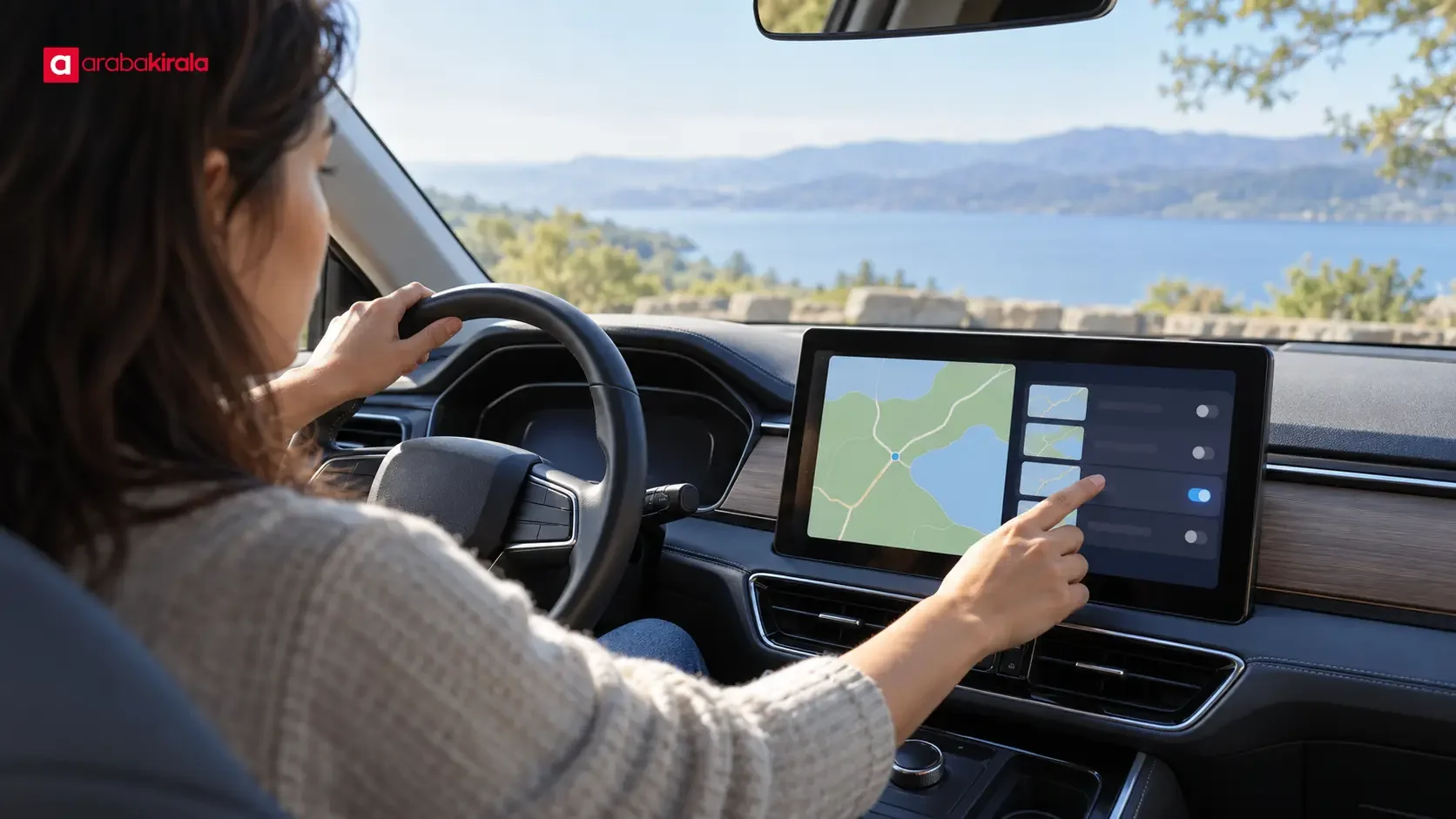
Rental car navigation data can include recent destinations, saved places, paired phones, and some information associated with a device connection. This guide explains where those items may appear, what to check when collecting a car, and how to remove your own information at the end of the rental. Menus and deletion options differ by vehicle, so use the owner’s manual for model-specific instructions.
What information can an in-car system show?
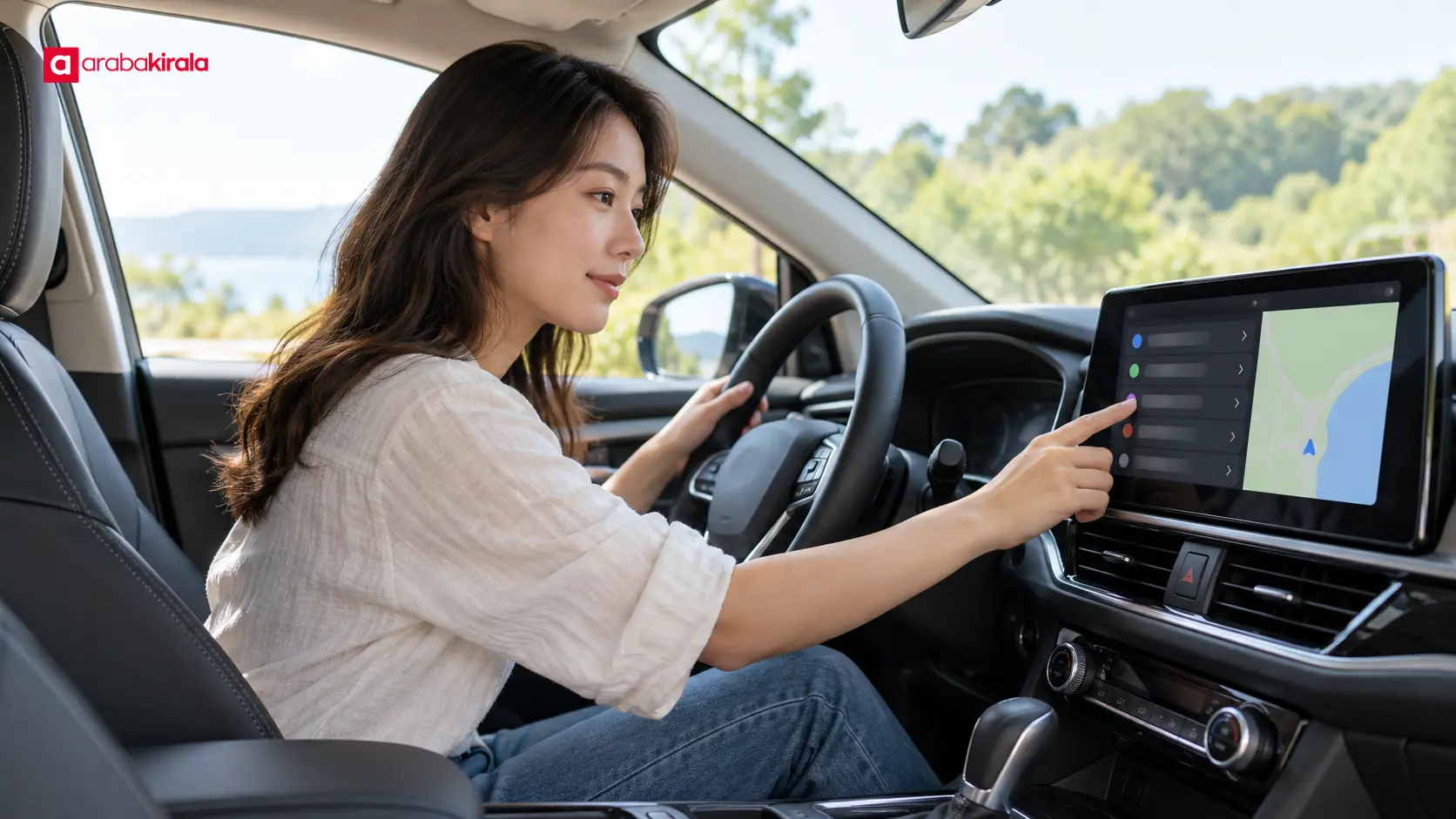
A built-in navigation system may list recently used destinations and saved locations so a driver can reopen a route. Favorites, home or work locations, and recent searches may appear in separate menus. Depending on the system, these entries may be associated with a user profile or stored as general settings on the display.
Connecting a phone by Bluetooth or cable can involve other kinds of information. The system may remember a device name and connection preference. When phone integration is enabled, it may offer access to contacts, call history, or message notifications. The details depend on the phone’s operating system, connection method, and vehicle software. A permission prompt does not prove that every item is permanently stored. Read the prompt and decline access you do not need.
Navigation entries should not be confused with vehicle usage records. A recent destination list is not a substitute for maintenance, fuel, or mileage records. Diagnostic and telematics features, if present, are separate matters and cannot be inferred from the navigation menu. This guide focuses on personal settings that a driver can review on the screen.
Review the system when you collect the car
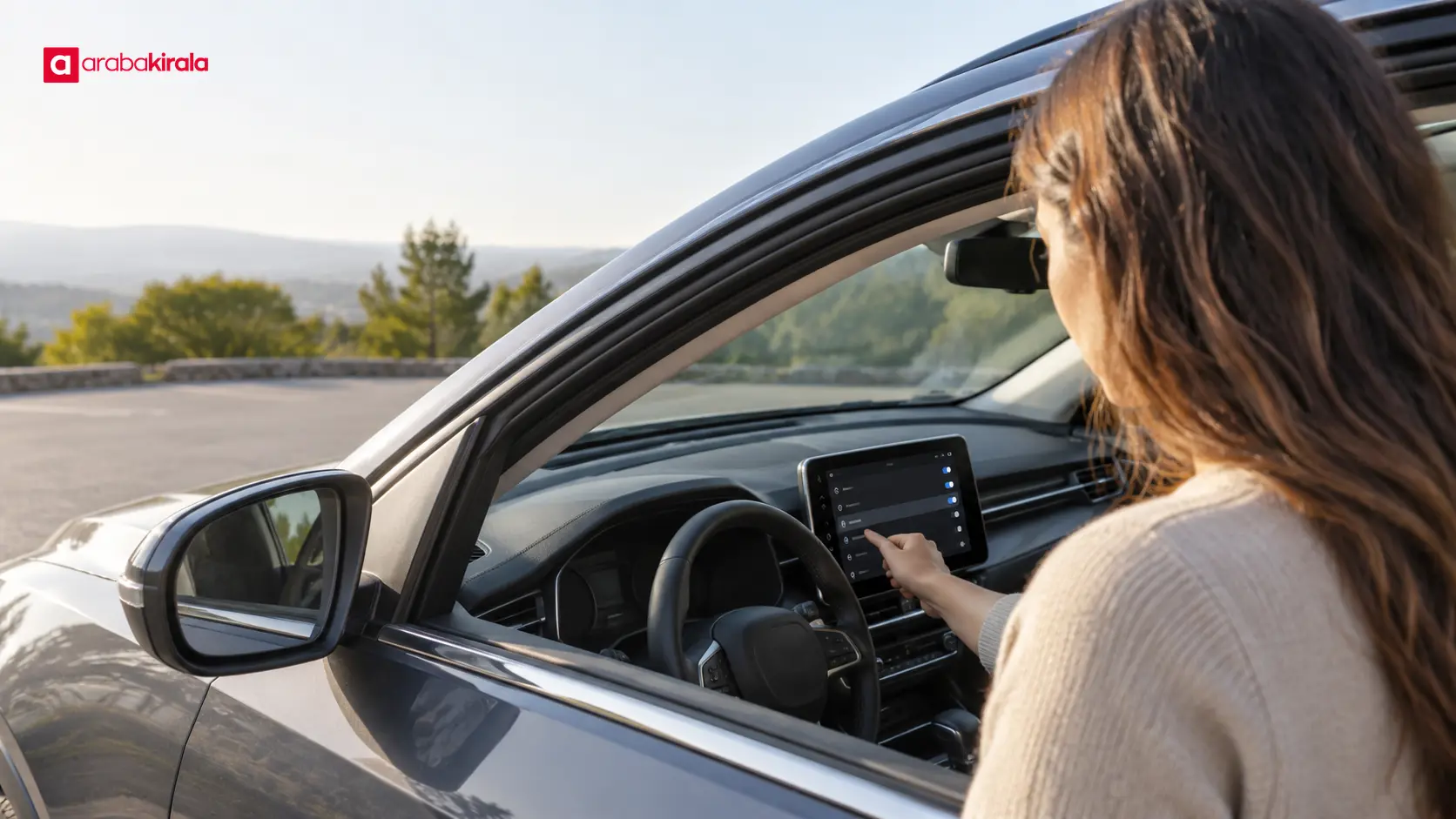
Before driving, take a brief look at the infotainment display. This helps you spot information that may belong to a previous user and understand where your own settings will appear. Do this while the vehicle is safely parked. Do not browse menus while moving; if you are already driving, wait until you can park safely.
- Recent destinations and favorites: Locate the navigation sections for recent places, saved locations, and favorites. If you see a location that is not yours, tell the branch from which you rented the car. Avoid resetting the system without guidance.
- User profile: Check whether a profile, guest mode, or personalization setting is active. Before deleting or switching a profile, find out which settings the action could affect.
- Paired devices: Look for a list of saved phones or Bluetooth devices before pairing your own. Note whether devices from previous users are visible.
- Privacy and permissions: Review options for contacts, call history, or notifications. If the system lets you limit access, use the vehicle manual to make the choice that suits your needs.
A destination appearing in a list does not reliably explain how the vehicle was used. It does not establish who went there or when; lists can be sorted differently, outdated, or linked to a particular profile. Check only what you need for your privacy and use, rather than opening someone else’s saved information out of curiosity.
Manage privacy when connecting your phone
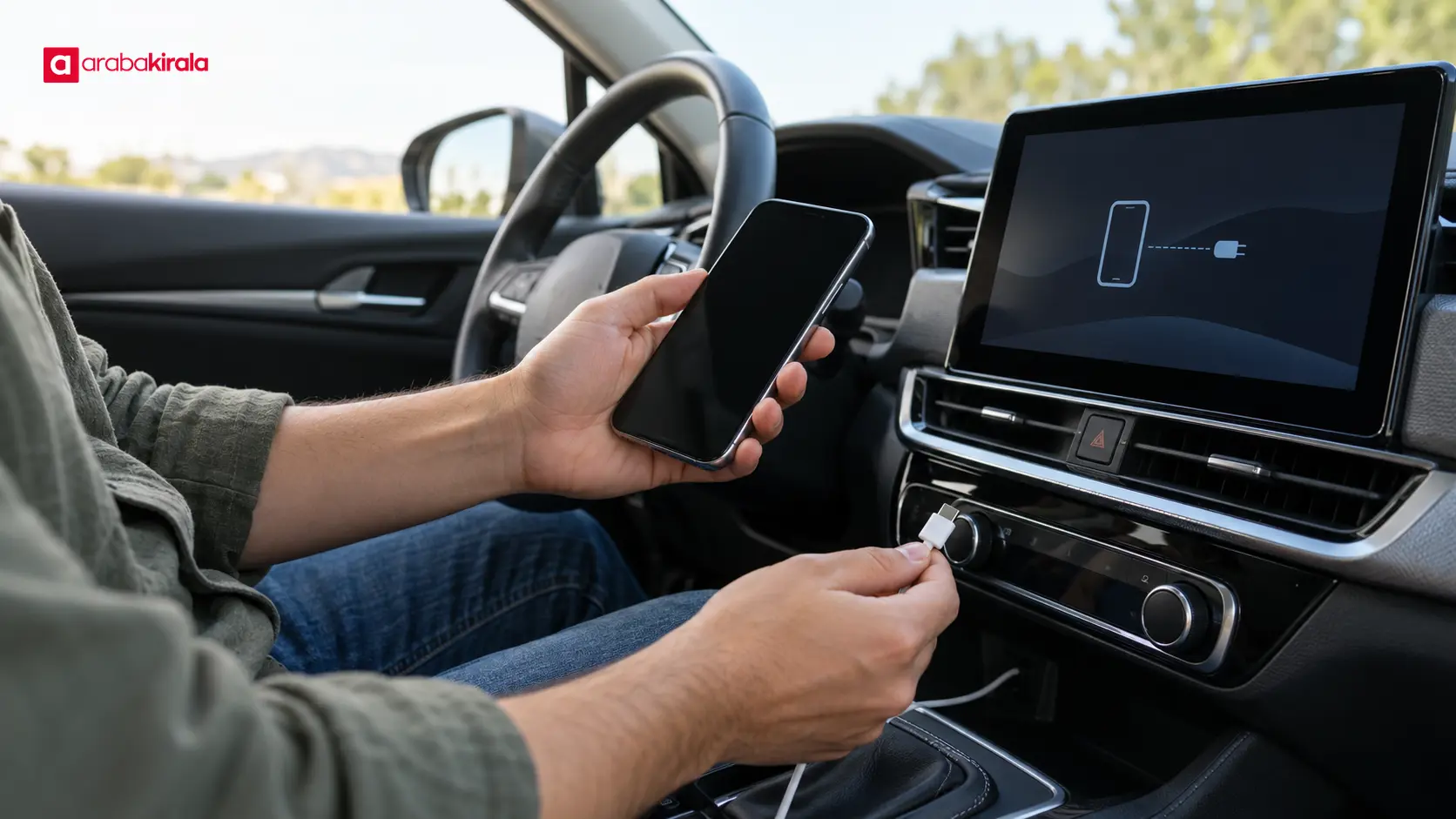
Phone integration can make navigation easier, but it is useful to choose deliberately what the vehicle can access. Read the explanations shown during pairing. Even if you want phone-based navigation, contacts or message access may be offered as separate permissions. Declining functions you do not use can reduce personal information displayed on the car’s screen.
After pairing, learn where the system shows the device name and permission status. Removing a device and deleting a user profile may be different actions. Deleting a profile could also affect favorites or radio preferences. Check what a menu option does before selecting it, and avoid unfamiliar reset procedures. The manufacturer’s owner’s manual is the best source for model-specific menu names and steps.
Set your route before setting off. Navigation guidance may not reflect every road, traffic, or access condition, so keep your attention on driving and follow road signs. If the map and a road sign conflict, prioritize safe driving and official signs without becoming distracted by the screen. You may also choose to search for a sensitive address only when needed instead of saving it as a favorite.
Remove your information at the end of the rental
Before returning the car, disconnect your phone and review the information you added. Check recent destinations, favorites, paired phones, and user profiles. Use deletion options described in the owner’s manual; do not perform a factory reset if you are unsure what it will change.
Systems do not always keep all information in one place. Clearing recent destinations may leave paired phones intact, and removing a phone may not remove saved places or profile settings. Do not assume that one “clear history” control removes everything. Review the relevant sections separately. If the system requires a password or confirmation for removing a profile or device and you do not have it, ask the rental branch for guidance instead of forcing the process.
To check that removal worked, reopen the relevant list and confirm that your phone or destinations no longer appear. Your phone may also offer a way to forget the vehicle; if you paired it during the rental, remove that connection in the phone’s settings as well. These steps address the separate records on the vehicle and on your phone.
When to contact the rental branch
Contact the branch if a menu is inaccessible, a deletion option is locked, or you are unsure whether an action affects other settings. Describing the vehicle make and model or the menu heading can help staff point you to the right manual. Tell the branch if information that appears to belong to a previous user is visible when you collect the car.
Explain briefly what you see and what you are trying to remove. Pickup and return procedures can vary by location, so ask the branch from which you rented whether you should remove a profile or change any settings. Do not treat a general online tip as a technical instruction that applies to every vehicle.
A simple review sequence
- While parked, check navigation history, favorites, and profile menus.
- Before pairing your phone, review saved devices and access permissions.
- Allow only phone features you need, after reading the on-screen explanation.
- Before return, disconnect your phone and clear your own entries using the manual.
- If a deletion or reset step is unclear, ask your rental branch for model-specific guidance.
This sequence helps you manage rental car navigation data without leaving personal information in the system unnecessarily. Notice existing entries at pickup, choose phone permissions carefully during use, and remove your own connections and destinations before returning the car. As a next step, find the multimedia or privacy section in the vehicle’s manual and contact the rental branch for instructions specific to that car.
Frequently Asked Questions
What information might appear in a rental car’s navigation history?
Depending on the system, you may see recent destinations, searched locations, favorites, or addresses saved to a user profile. Menus and storage differ by vehicle, so do not treat the visible list as a complete or definitive record.
Will my contacts remain in the car after I pair my phone?
That depends on the connection method, vehicle software, and permissions you grant. Read the prompts during pairing. Before returning the car, review the vehicle’s paired-device list and remove the connection from your phone’s settings too.
Does clearing navigation history also erase my phone’s records?
Usually these records are managed separately. Clearing history on the car screen does not necessarily remove searches from a navigation app on your phone. Review the vehicle system and phone app independently.
What should I do if I see destinations saved by a previous user?
Tell the branch from which you rented the car without opening the entries. A listed place does not establish someone’s identity, visit time, or reason for travel. Ask the branch for guidance suited to that vehicle before resetting anything.
Should I use a factory reset to remove all my data before return?
A factory reset may affect settings beyond navigation, and its effects vary by vehicle. Check the owner’s manual for data-removal options first. If you are unsure about the scope, ask your rental branch.
Legal Disclaimer: All content, articles and information on the Araba Kirala website are provided solely to inform users. No information shared on this website constitutes definitive advice or guidance. Araba Kirala Teknoloji A.Ş. and its authors cannot be held responsible for any direct or indirect damages arising from the application of information on the website. For all questions and requests regarding car rental, please contact the office from which you will rent your vehicle.