How to Identify In-Car Technology and Connectivity at Rental Pickup
Published: October 17, 2026 • Reading Time: 7 min • Last Updated: October 17, 2026
Learn how to inspect a rental car’s screen, phone connections, navigation, driver aids, and key controls at pickup. Check each feature safely and confirm vehicle-specific details with the branch.
Contents
- Where to start your technology check
- Display and physical controls
- Phone connection and media
- Tell a charging port from a data port
- Using navigation and audio thoughtfully
- Driver assistance and parking technology
- Warning lights and drive modes
- A practical pickup checklist
- Summary: identify features and try them safely
- Frequently Asked Questions
Recognizing a rental car’s equipment at pickup can keep you from searching for an unfamiliar control after you set off. This guide explains how to inspect the multimedia display, phone connectivity, navigation and audio, driver assistance features, and basic controls safely. The vehicle’s manual and the controls actually fitted in that car are the best starting points for understanding how its features work.
Where to start your technology check
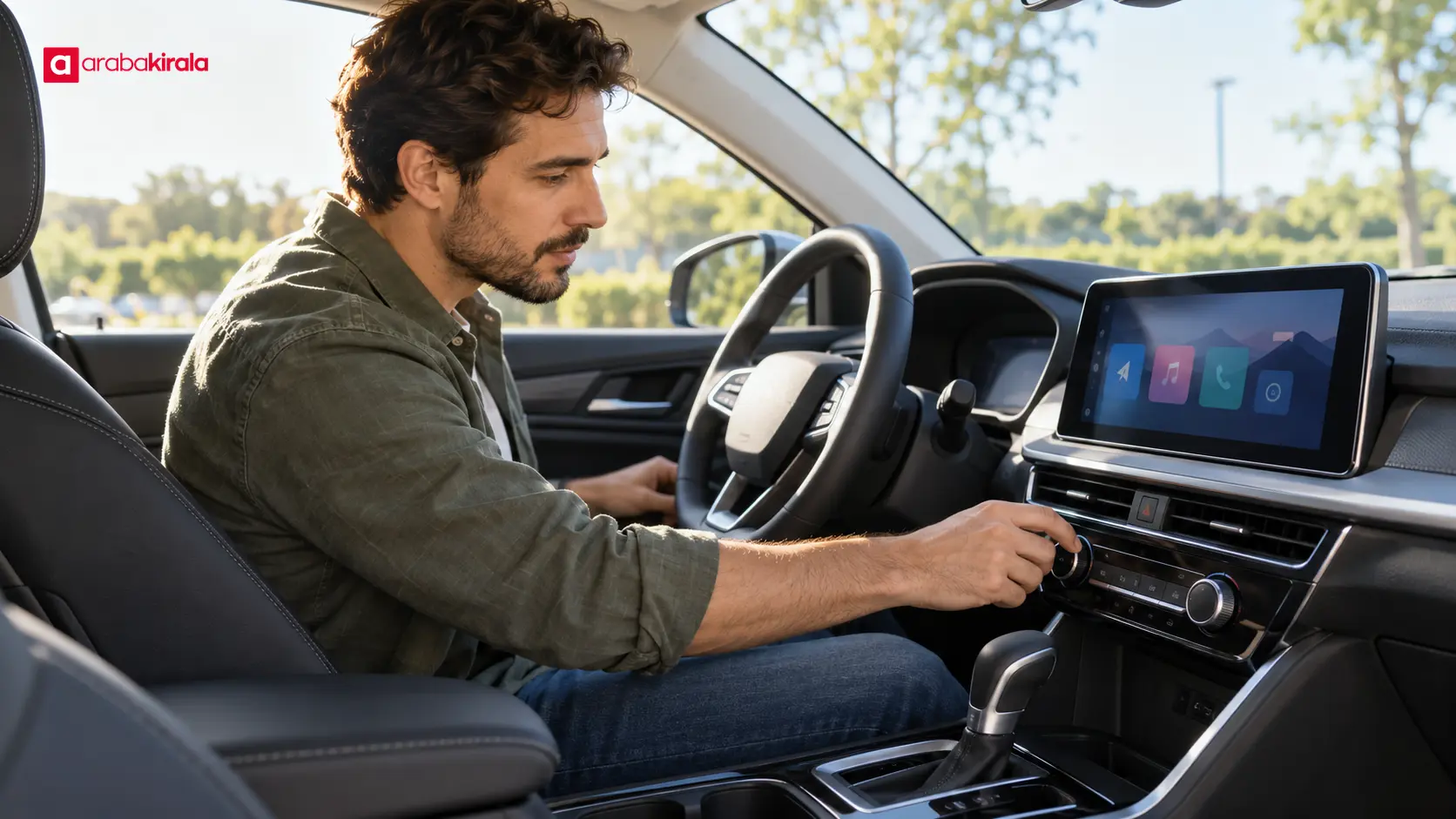
Before moving the car, sit in the driver’s seat and look over the display, buttons, steering wheel controls, and the area around the gear selector. The location of equipment and names in menus can vary by make, model, trim, and year. Use the symbols and manual for the vehicle in front of you rather than assuming its layout matches another car.
First identify basic functions: volume, the display’s home menu, climate controls, front and rear window defoggers, lights, and wipers. A touchscreen may have physical buttons or steering wheel shortcuts alongside it. Searching through menus while driving can distract you, so learn the location of controls you expect to use while the vehicle is still parked.
Display and physical controls
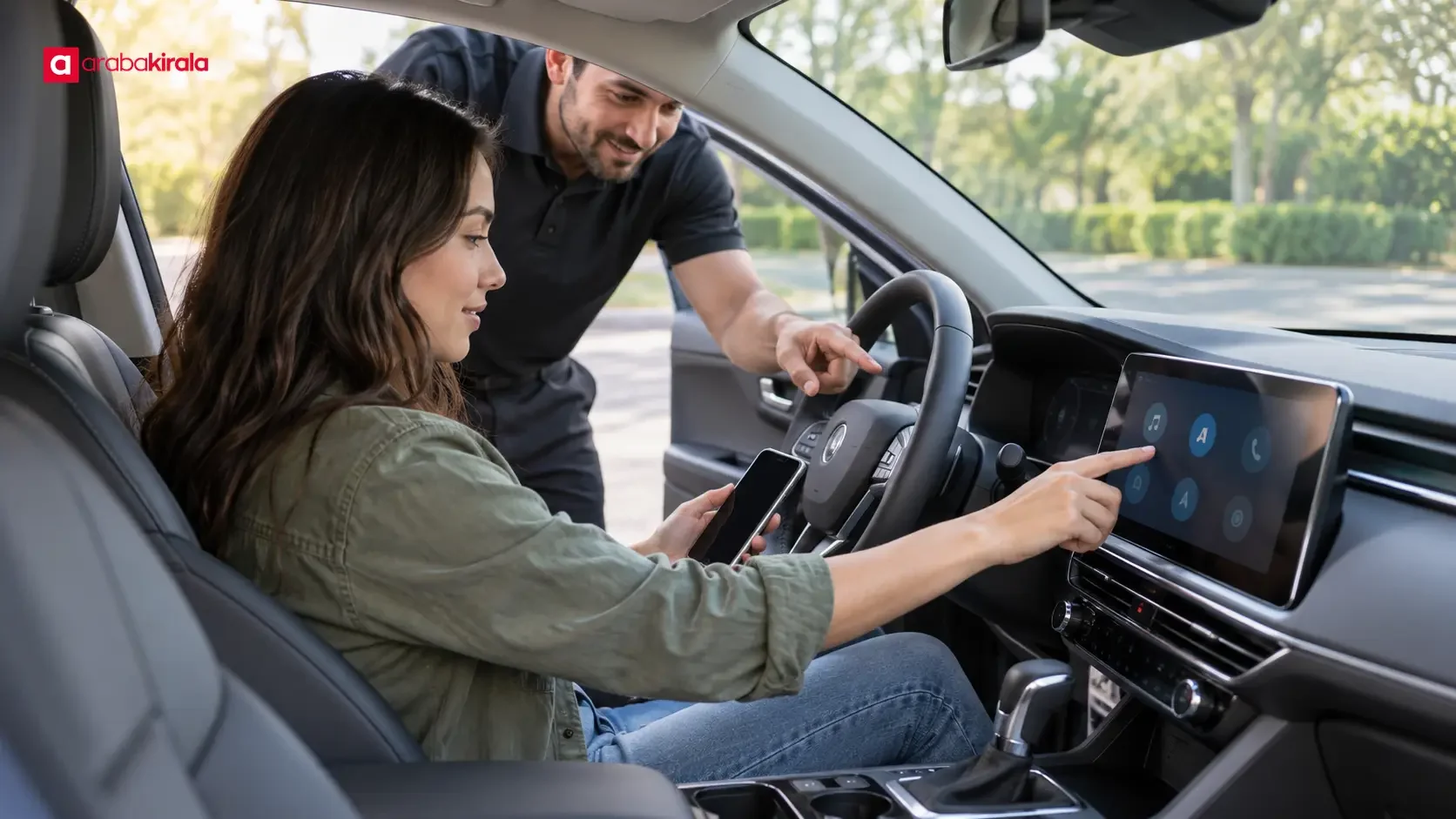
An infotainment display may bring together radio, media, vehicle settings, and phone menus. The presence of a menu item does not always mean that the related equipment is fitted or ready to use; some options appear only with a compatible device or active connection. If you cannot find a function, check the symbol guide in the manual or ask the pickup staff for a brief introduction instead of repeatedly exploring the menus.
Phone connection and media
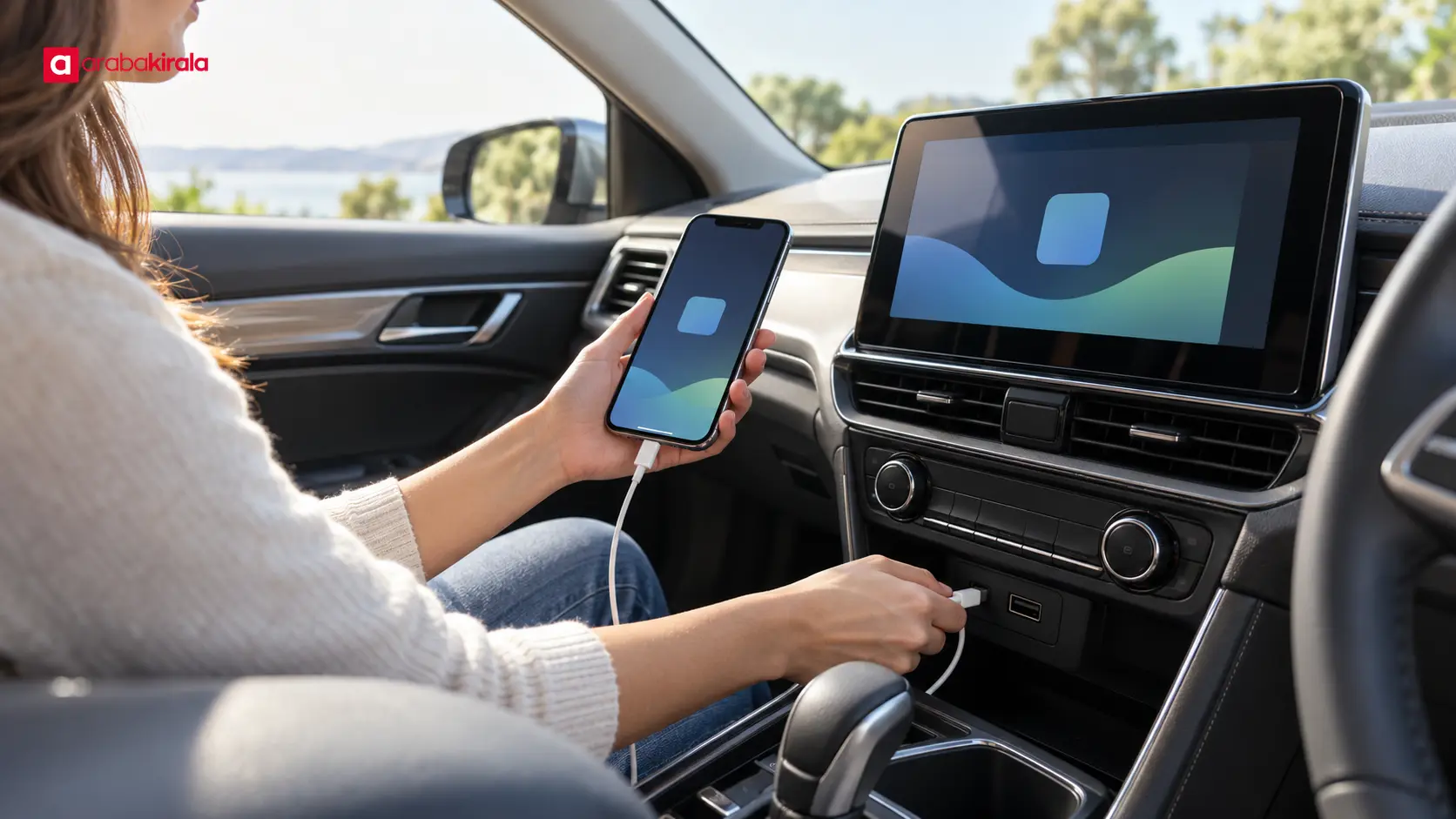
A phone may connect through a USB port, Bluetooth, or another interface supported by the vehicle. These methods are not interchangeable: USB can provide charging or data transfer on compatible devices, while Bluetooth is commonly used for wireless calls and audio. Finding a USB socket does not guarantee that it supports phone projection. Check the markings by the port, the vehicle’s connection menu, and the manual.
Keep the vehicle parked before pairing a phone. Follow the on-screen prompts to open Bluetooth, find the vehicle on your phone, and confirm that any pairing codes match on both screens. Once connected, briefly check at a low volume that call and media audio come through the car’s speakers. Phone calls, contacts, and notification display may require device permissions; grant only the access you need.
If you paired your phone during pickup, remove it from the vehicle’s saved-device list before returning the car and check that personal data is no longer stored in the system. Contacts, recent calls, and navigation history may be saved in the car. Removing the vehicle’s pairing from your phone can also prevent it from reconnecting automatically later.
Tell a charging port from a data port
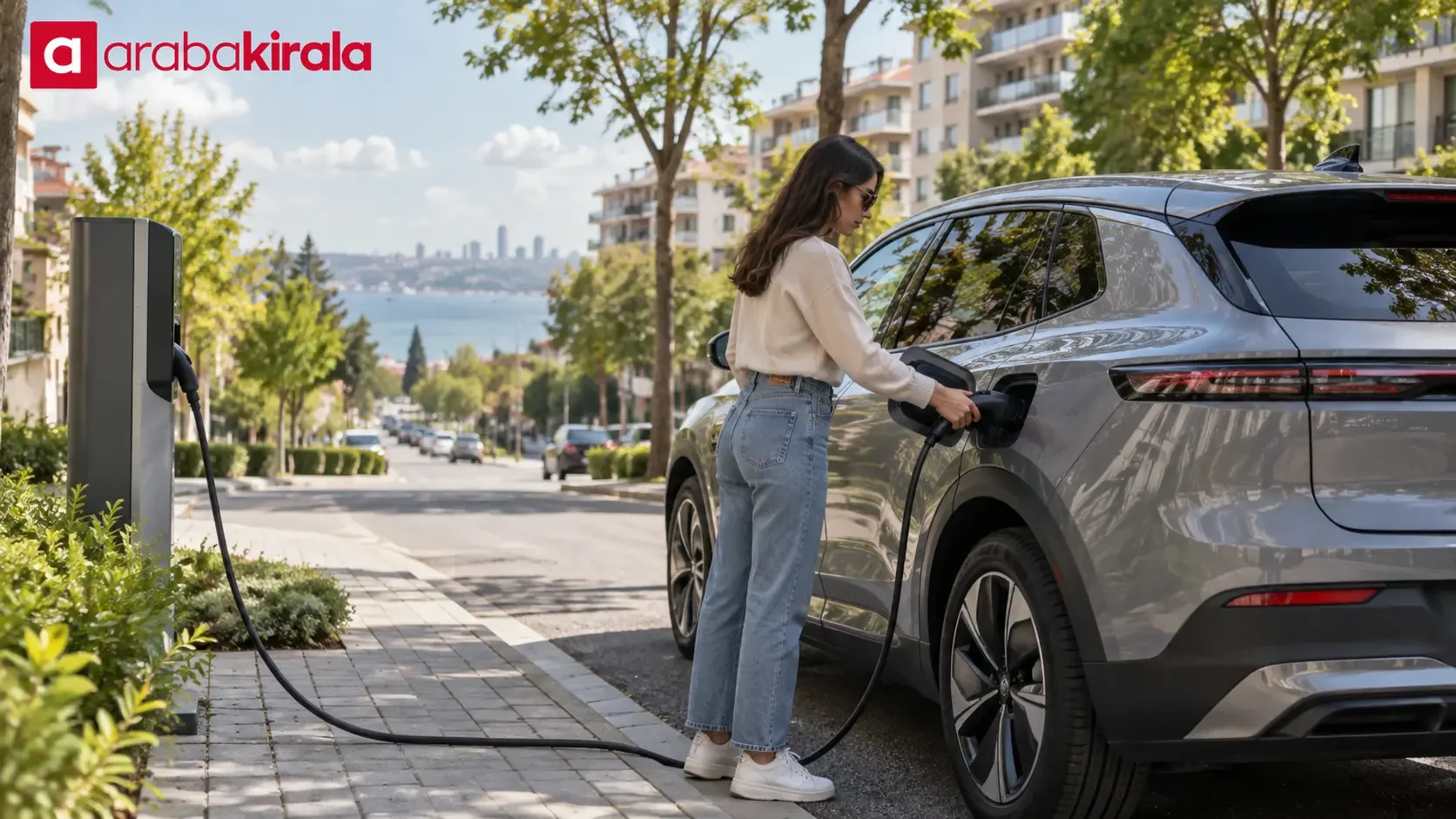
USB ports can serve different purposes in different vehicles: some provide power only, while others may support compatible media or phone connectivity. Inspect the symbols near the port and check that the socket is clear before plugging in a cable. Do not force the connector. If there is a wireless charging area, the phone must support the relevant standard and be placed correctly. If the phone heats up or charging stops, remove it and consult the manual.
Using navigation and audio thoughtfully
Built-in navigation and a phone map app may use different sources for location and route information. Built-in map data may not be current; a phone app may require internet access, location permission, or maps saved for offline use. Set your destination and voice guidance volume before departure. If you need to operate the display by hand while driving, first stop somewhere safe.
Try the radio and media system briefly to learn the volume, source selection, and steering wheel controls. Options such as speaker balance or sound effects may be available in a menu. Check the audio at a normal listening level rather than turning it up; avoid settings that make warning sounds difficult to hear.
Driver assistance and parking technology
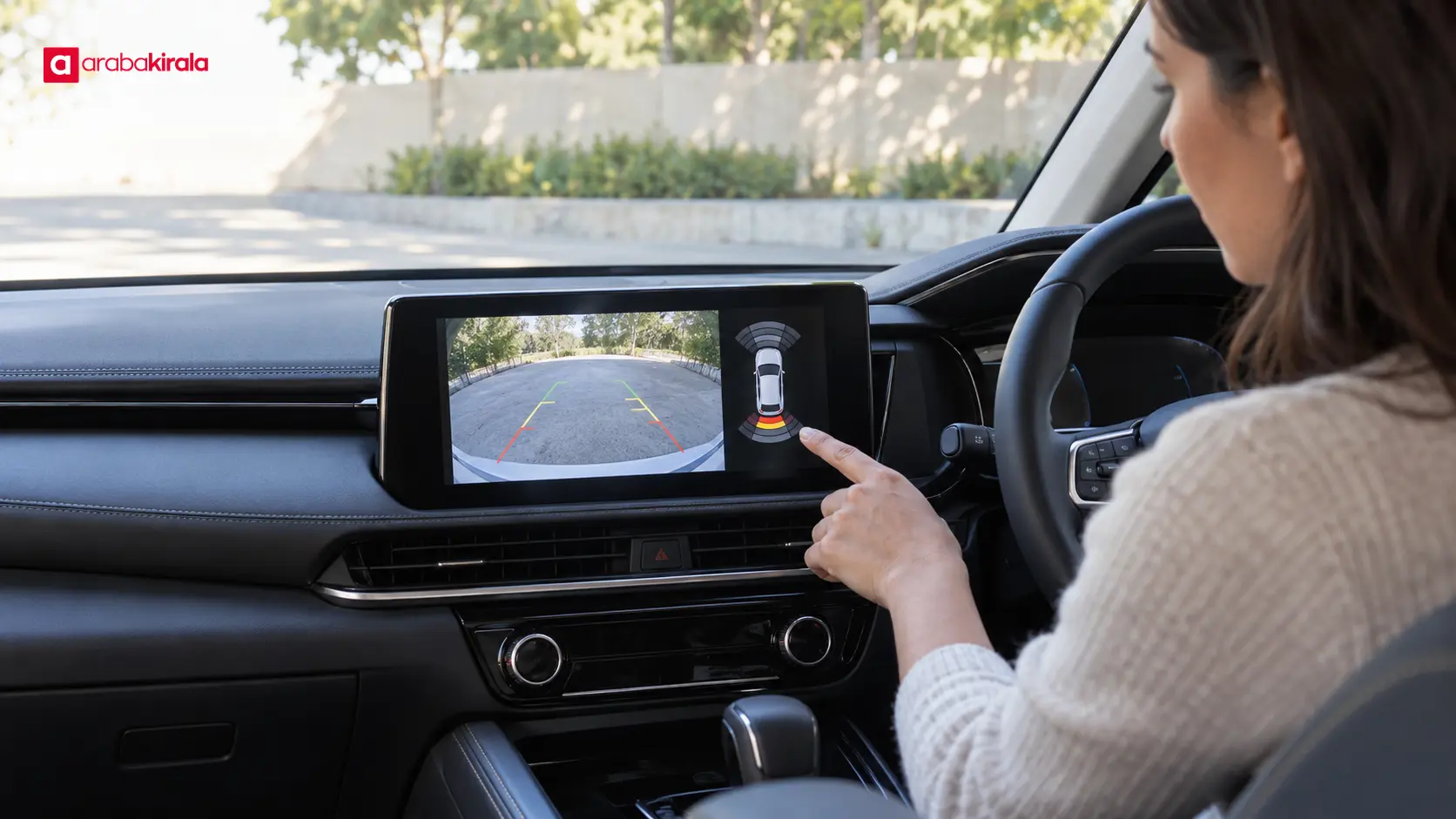
Equipment such as a reversing camera, parking sensors, cruise control, lane warnings, and blind spot indicators can help a driver monitor the surroundings. They do not replace attention or direct visual checks. A camera may not show the full area, and sensors may not detect every obstacle. Confirm which features are present through the vehicle’s menu, symbols, and manual.
To learn the reversing camera safely, keep the vehicle stationary and follow the instructions for the gear selector and parking brake. Inspect the camera’s view and any guide lines; do not treat guide lines as precise distance measurements. Read the manual’s description of sensor alerts. When maneuvering in a tight space, check the surroundings using mirrors and direct sight as well as the display; do not rely on the screen alone.
Warning lights and drive modes
The meaning of a dashboard warning light depends on its symbol and color. Some lights may appear briefly when the ignition is switched on; a light that remains on or appears while driving calls for a different response. If you do not know what it means, consult the manual before continuing and contact the branch where you collected the vehicle. Drive modes can change responses such as acceleration or steering feel, so learn which mode is selected and how to change it before use.
A practical pickup checklist
- Locate the display, steering wheel controls, and basic climate buttons before moving off.
- Check the markings on USB ports and any wireless charging area; do not assume phone projection is supported.
- Pair Bluetooth while parked and briefly check call and media audio.
- Confirm whether navigation, a reversing camera, and sensors are fitted through the manual and vehicle menus.
- Do not drive with an unfamiliar symbol or warning until you understand what it means.
- If you connected a personal device, remove your saved information from the car before returning it.
Connectivity, equipment, and operating details can vary with the specific vehicle or branch. Ask the branch you are renting from whether a particular feature is fitted, whether your phone is compatible, or how to report equipment that does not work. This gives you vehicle-specific information without assuming that every car or location follows the same process.
Summary: identify features and try them safely
The practical way to get familiar with rental car technology is to inspect the controls while parked, then try only the connections you need in a brief, controlled way. Distinguish the roles of the display, USB, Bluetooth, navigation, and driver aids. Do not guess at details that you cannot confirm from the manual or the vehicle’s symbols. Finish the basic checks before setting off, and contact the pickup branch about unfamiliar equipment or location-specific procedures.
Frequently Asked Questions
Does every USB port connect a phone to the car’s display?
No. Some USB ports provide charging only; data transfer or phone projection depends on the port and vehicle. Check its markings, the connection menu, and the owner’s manual.
What should I do if Bluetooth pairing fails?
Make sure the car is parked, Bluetooth is enabled on both devices, and the pairing list is not full. If needed, remove an old pairing and try again. If the issue continues, ask the pickup branch for help with that vehicle’s system.
Is a reversing camera enough when parking?
A camera is an assisting feature and may not show the entire area; sensors may not detect every obstacle. Continue to use mirrors, direct sight, and checks of the surroundings.
How should I choose between built-in navigation and a phone map?
Before departure, check that either option shows the correct destination and that its voice guidance is clear. A phone app may need a connection or location permission, while built-in map data may not be current. Choose and set up the useful option while parked.
How do I remove my phone information from the car?
Before returning the vehicle, remove your phone in the Bluetooth or saved-device menu and check for stored contacts, call history, and navigation entries. Deleting the car’s pairing from your phone helps prevent a later automatic connection.
Legal Disclaimer: All content, articles and information on the Araba Kirala website are provided solely to inform users. No information shared on this website constitutes definitive advice or guidance. Araba Kirala Teknoloji A.Ş. and its authors cannot be held responsible for any direct or indirect damages arising from the application of information on the website. For all questions and requests regarding car rental, please contact the office from which you will rent your vehicle.