Prepare Offline Navigation Before Picking Up a Rental Car in Beylikdüzü
Published: October 27, 2026 • Reading Time: 7 min • Last Updated: October 27, 2026
A practical guide to downloading maps, checking offline access, preparing your phone, and using navigation safely before setting off from Beylikdüzü.
Contents
- Prepare offline navigation before Beylikdüzü car rental pickup
- What an offline map can and cannot do
- Choose map coverage for your route from Beylikdüzü
- Download and verify before pickup
- Set up your phone for the drive
- Use route guidance alongside road signs
- Complete pickup and vehicle checks too
- A short checklist before setting off
- Frequently Asked Questions
- Final preparation: download the map and review your route
Prepare offline navigation before Beylikdüzü car rental pickup
Before setting off in a rental car from Beylikdüzü, save the map area to your phone so you can still view roads if your internet connection weakens. This guide explains how to choose the right coverage area, complete the download before pickup, check that the map opens offline, and use navigation without distracting yourself while driving. An offline map does not guarantee that live traffic or every online feature will work, so include route and phone-power checks in your departure preparation.
What an offline map can and cannot do
An offline map stores road and geographic data for a selected area on your device. If the internet connection drops, the app may still display roads and your location using that saved data. Features vary by app: live traffic, current road closures, online search, public transport information, and some place details may require an internet connection. Offline route planning also depends on the app you use.
GPS location and internet access are different things. A phone can determine its position from satellite signals without internet, though tall buildings, indoor locations, and other surroundings can affect accuracy. A downloaded map does not mean your phone will receive a reliable GPS signal everywhere. Treat navigation as one source of guidance, and follow road signs and traffic controls.
Choose map coverage for your route from Beylikdüzü
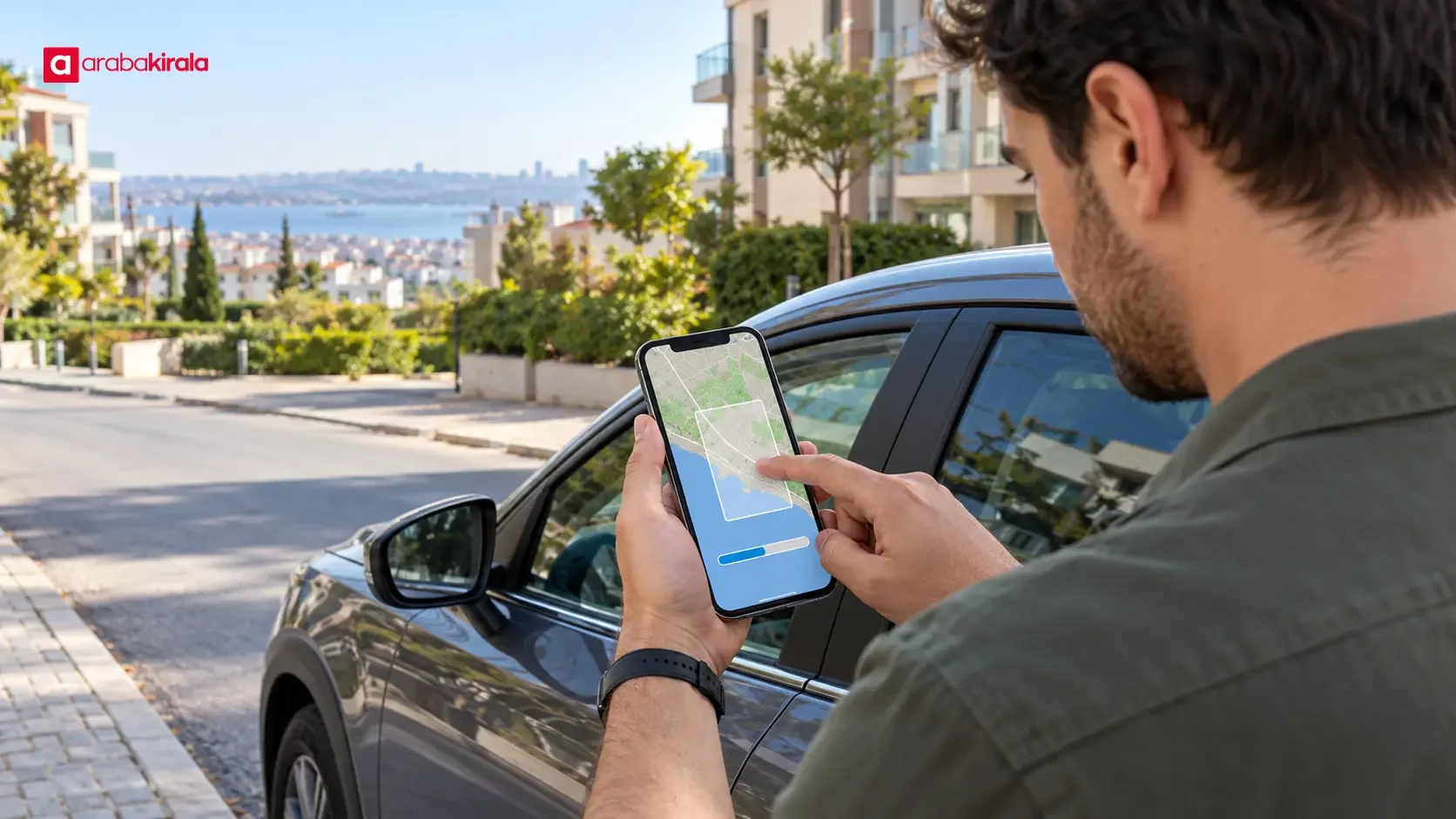
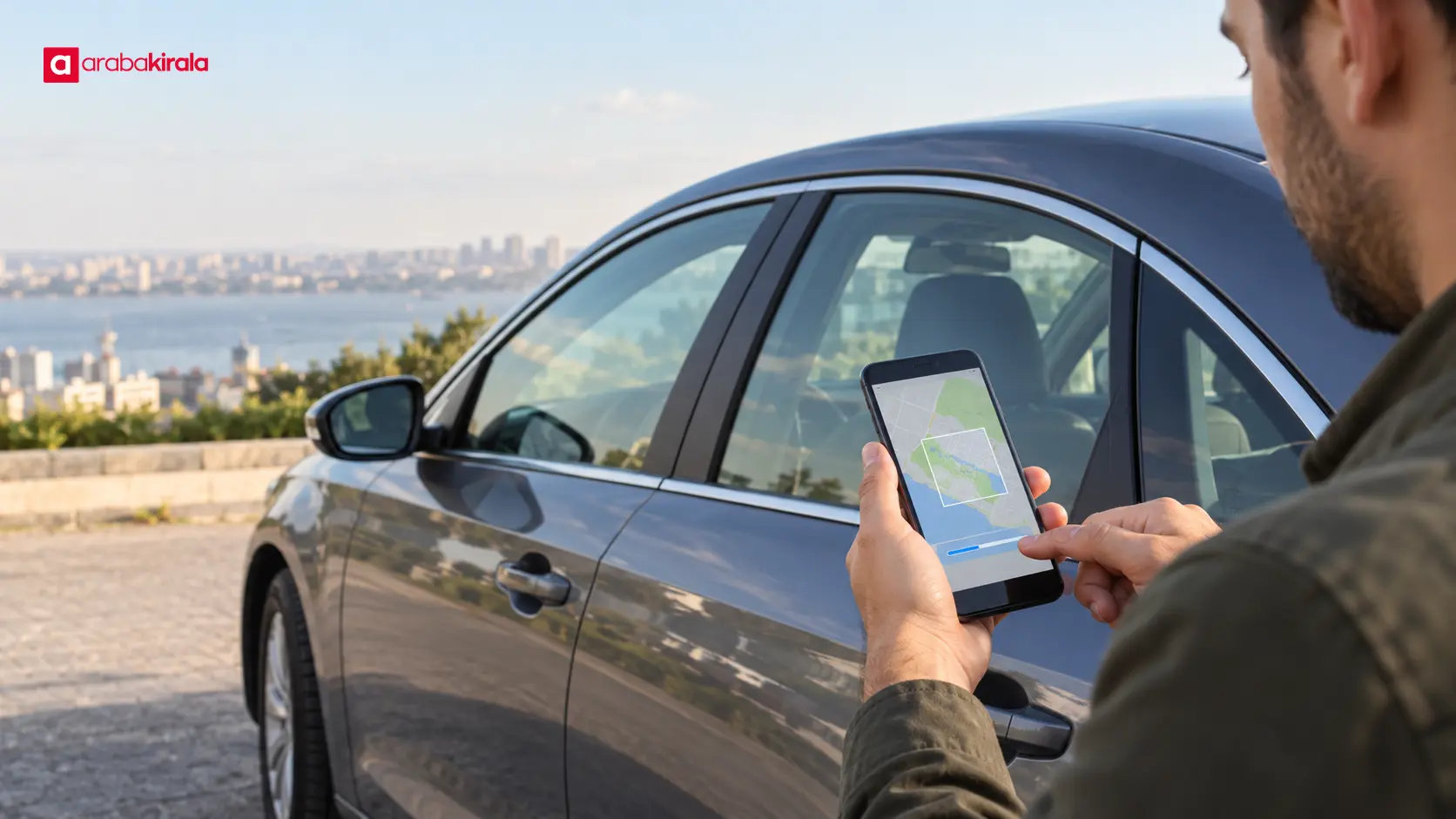
Downloading only a small area around your starting point may leave you outside the map coverage during the trip. In the app’s download screen, select an area that includes the direction you will travel from Beylikdüzü and a reasonable area around the route. If your journey continues to other districts or outside Istanbul, check that all map areas needed along the way are saved in advance. Keeping the map boundary beyond the road itself can also help if you need to consider another route.
When defining the area, account for more than the route line shown on the screen. Include the way out from the pickup point, the final approach to your destination, and possible route changes. If the app downloads a square or rectangular region, the saved file may include places outside your route. That is normal; the goal is to cover the road connections and surrounding area you may need.
Download and verify before pickup
- Check the app and available storage. Make sure your chosen map app opens, supports offline downloads, and has enough free space. Download size depends on the area and the app’s data.
- Download while connected. Complete the download before the vehicle moves and before you reach a place where you may need mobile data. Keep the app open during the process and confirm completion in its map-management screen.
- Check map freshness. Apps may occasionally ask you to refresh saved maps. Review the download date and any update notice. An older map may not include newer road layouts or changed place information.
- Run a brief offline check. While the vehicle is stationary in a safe place, temporarily turn off internet access and check that the saved area opens. This does not test every app feature; it only confirms that the map data is accessible. Restore the connection afterwards.
- Set the destination in advance. If the app allows it, prepare the destination or route before leaving. Confirm the address and entrance point; places with similar names can lead to selecting the wrong destination.
Set up your phone for the drive
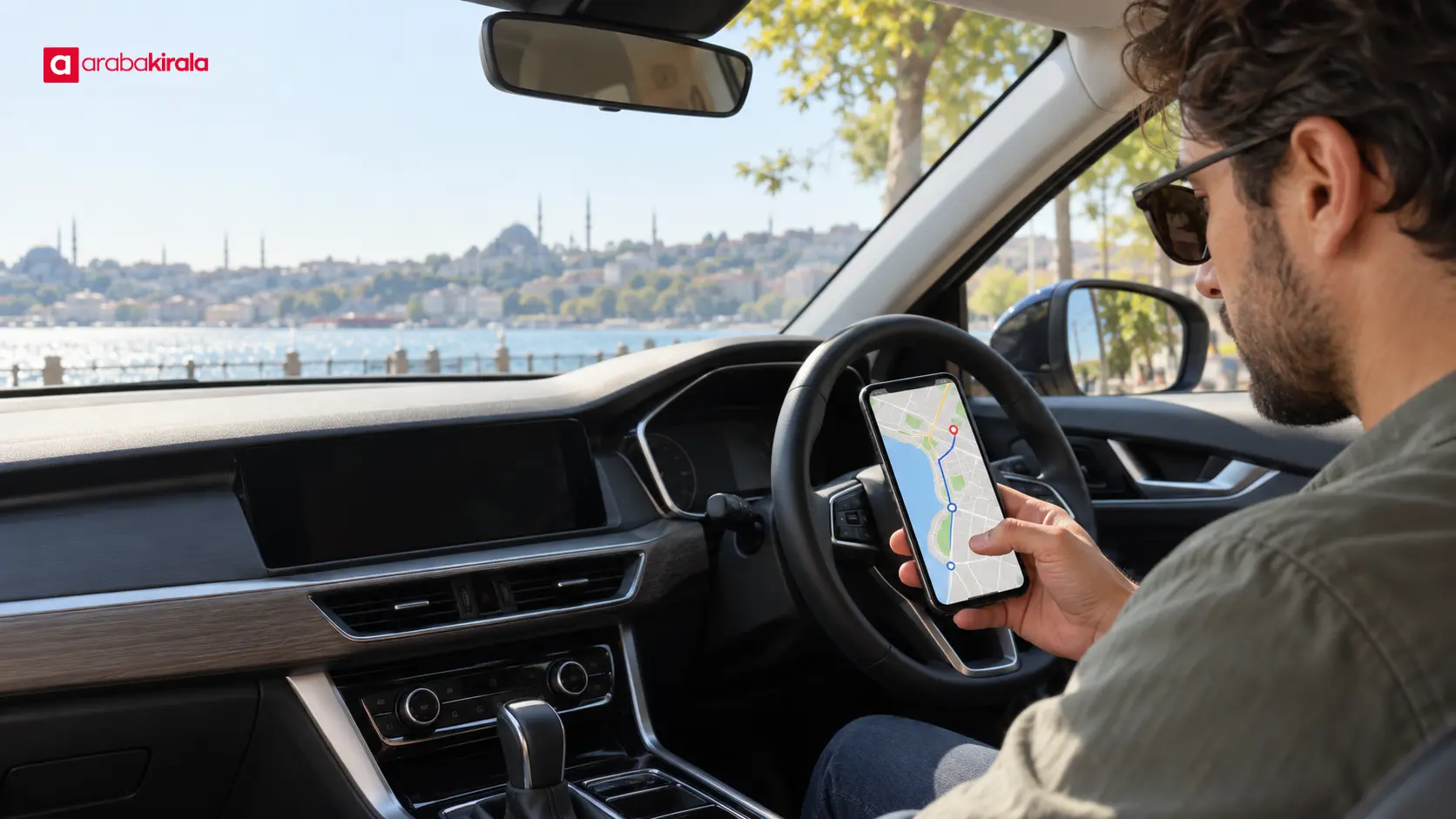
A screen left on for a long time and location services can drain a phone battery. At pickup, check whether you have a suitable charging cable and power source; do not assume a particular vehicle feature or connection option. Position any phone holder so it does not block the driver’s view, airbags, or access to vehicle controls. If you are unsure how to use an in-car connection or accessory, ask the pickup office.
Set screen brightness, voice guidance volume, and night display before moving. Notifications can cover the route screen, so limiting distracting notifications before driving can help. Do not hold the phone to search for a route or interact with the screen. If you need to enter a destination, change the route, or adjust settings, first stop completely in a safe place.
Use route guidance alongside road signs
Navigation can help you understand upcoming turns and junctions, but it does not replace road signs. Follow signs for lane choice, speed limits, priority, and temporary directions. If the app conflicts with the road layout, do not adjust it while driving; respond safely and lawfully to the conditions, then stop somewhere suitable if you need to reconsider the route.
Traffic, roadworks, or temporary closures can change the best route in Istanbul. An offline map shows saved road data and may not reflect current conditions. Before leaving, review the general route while connected, note major junctions, and verify your destination. If you use online traffic information during the trip, remember that access depends on connectivity.
Complete pickup and vehicle checks too
Navigation preparation does not replace the vehicle handover process. Ask the office where you are renting about the pickup point, the direction of exit, and any vehicle features you need to know at handover. Check the fuel or charge level shown on the dashboard, the vehicle’s general condition, and the handover record. Do not assume the car has built-in navigation, phone mirroring, or a particular connection option; ask the office what equipment is available and how to use it.
Rental terms, optional equipment, and handover arrangements can vary by office and reservation. If you plan to use your phone, prepare the cable, holder, and app settings for your own device. If you have a compatibility or connection question about an in-car feature, clarify it with the office before pickup.
A short checklist before setting off
- The saved map area covers the planned route and the areas around the start and destination.
- The download is complete and the map opens in the app.
- Map update status has been checked and the destination address verified.
- Phone charge, cable, and a suitable holder are ready.
- Route and screen settings are complete before the vehicle moves.
- You are ready to follow road signs and traffic controls along the route.
Frequently Asked Questions
Does an offline map keep every navigation feature working without internet?
No. A downloaded road map may open offline, while live traffic, current closures, online search, and some details may need a connection. Available features depend on the app.
Is downloading only a map of Beylikdüzü enough?
That depends on your destination. Coverage should include the starting area, the route, the destination surroundings, and room for a possible route change. Download other map areas if you are leaving the city.
How can I tell whether my downloaded map works offline?
Before the car moves, check that the app opens the saved area in a safe place. Temporarily disable internet access and see whether the map displays, then restore the connection. Offline features may be limited by the app.
Will an offline map show traffic congestion?
Live traffic usually relies on current connected data; a saved map by itself does not show real-time congestion. Check available current information before departure and follow road signs during the trip.
Can I use the car’s built-in navigation?
Not every vehicle has the same navigation or phone-connectivity equipment. Ask the office where you will pick up the car which systems are available, what connection is needed, and how to use them.
What should I do if navigation gives an incorrect route while driving?
Do not reach for the phone while driving. Move safely in line with road signs and current traffic controls. If you need to change the route, bring the vehicle to a complete stop in a suitable, safe place first.
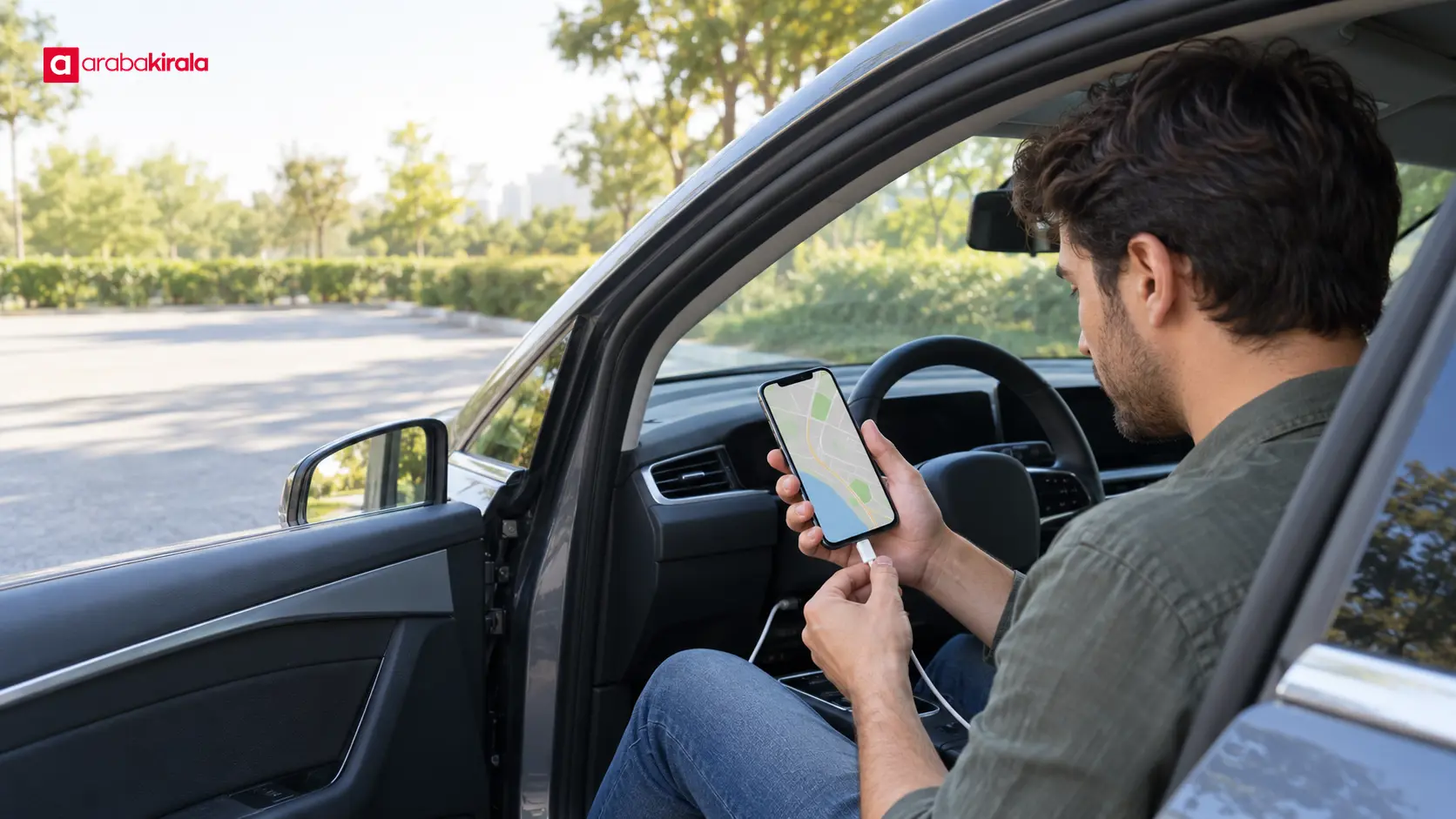
Final preparation: download the map and review your route
Before your Beylikdüzü car rental trip, downloading the right map area, checking offline access, charging your phone, and confirming vehicle connection options can make departure preparation more practical. Review the route once before setting off, avoid interacting with the screen while moving, and use navigation together with road signs. Confirm office-specific vehicle or handover details with the location where you will collect the car.
Legal Disclaimer: All content, articles and information on the Araba Kirala website are provided solely to inform users. No information shared on this website constitutes definitive advice or guidance. Araba Kirala Teknoloji A.Ş. and its authors cannot be held responsible for any direct or indirect damages arising from the application of information on the website. For all questions and requests regarding car rental, please contact the office from which you will rent your vehicle.