How to Remove Phone Pairings and Personal Data Before Returning a Rental Car
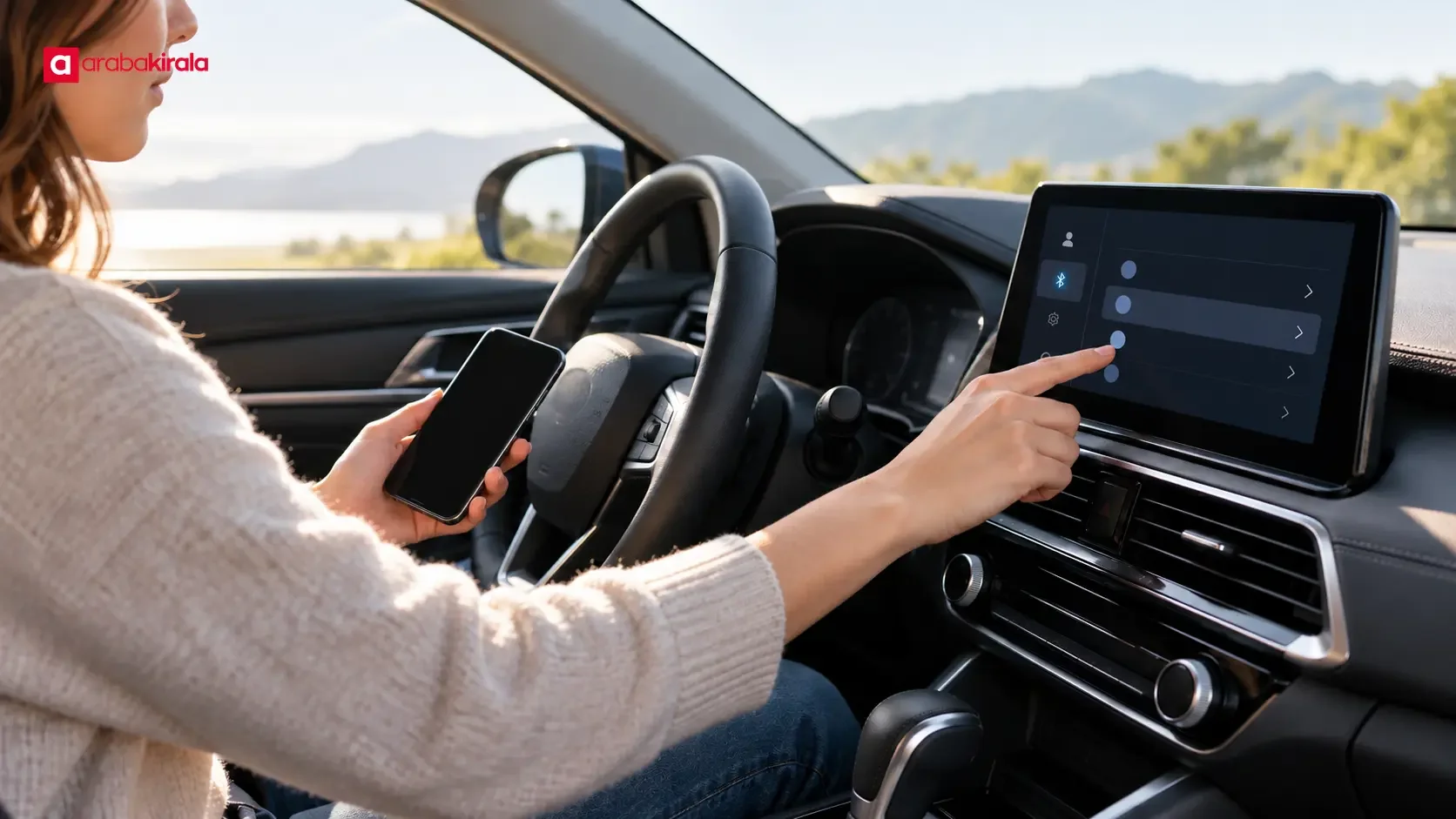
Published: October 18, 2026 • Reading Time: 6 min • Last Updated: October 18, 2026
Check Bluetooth pairings, contacts, call history, navigation destinations, accounts, and belongings before handing back a rental car.
Contents
- Why remove your phone connection?
- A practical order for your return check
- 1. Park safely before changing settings
- 2. Remove your device from the paired list
- 3. Review personal information and history
- 4. Check navigation destinations and user profiles
- USB devices, accounts, and belongings
- A short final checklist
- Frequently Asked Questions
Removing a phone pairing from a rental car can involve more than disconnecting Bluetooth. This guide explains how to delete your device from the car’s paired list, review contacts and call history, clear navigation destinations, sign out of accounts, and check for personal items before returning the vehicle. Make these changes while parked; menu names and available controls vary by vehicle and infotainment system.
Why remove your phone connection?
When a phone connects to a car over Bluetooth, the system may support hands-free calls or audio playback. Depending on the vehicle and the permissions you allowed, it may also display or retain contacts, recent calls, favorite contacts, or message notifications. The exact information varies by system. Disconnecting the phone does not necessarily remove its pairing record or information that was previously transferred.
Removing the pairing reduces the chance that a later user will see the previous device in the car’s list or reconnect to it. It can also prevent your phone from automatically connecting to that vehicle again. This does not establish that every trace has been erased from every part of the system. Follow the vehicle’s owner’s manual and review any user profiles or app sessions you created.
A practical order for your return check
1. Park safely before changing settings
Bring the vehicle to a complete stop in a suitable place before using the phone or infotainment menus. Adjusting settings while driving can distract you. If the system requires the ignition to be on, follow the vehicle’s instructions and switch the vehicle off normally when finished. Avoid leaving a running vehicle unattended.
2. Remove your device from the paired list
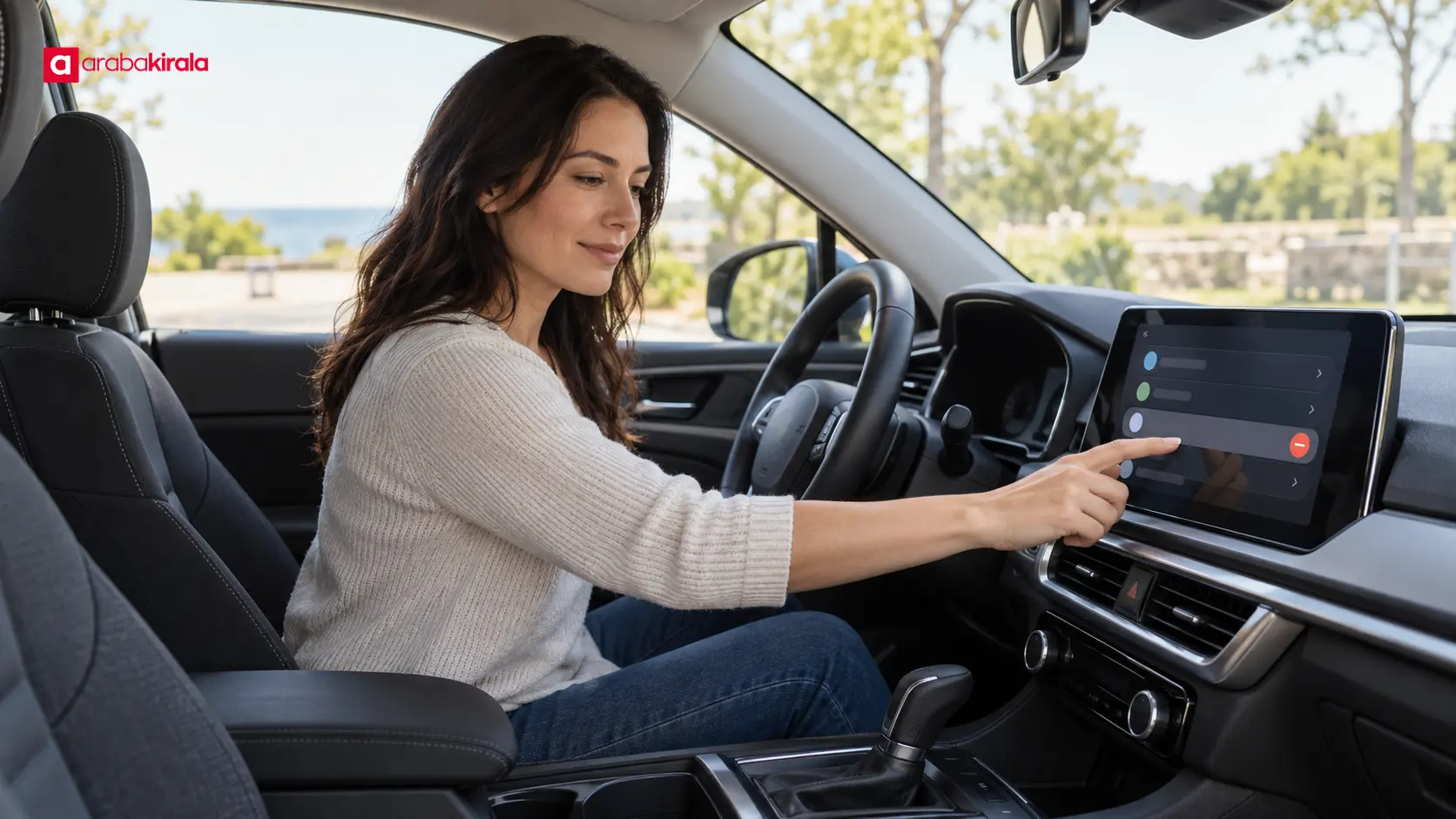
Look for a phone, Bluetooth, connections, or devices section in the infotainment system. Select your phone from the paired-device list and use the remove or forget option shown on screen. Confirm that you selected the right device if the system asks. If several phones are listed, remove only your own entry; avoid changing another user’s profile or general vehicle settings.
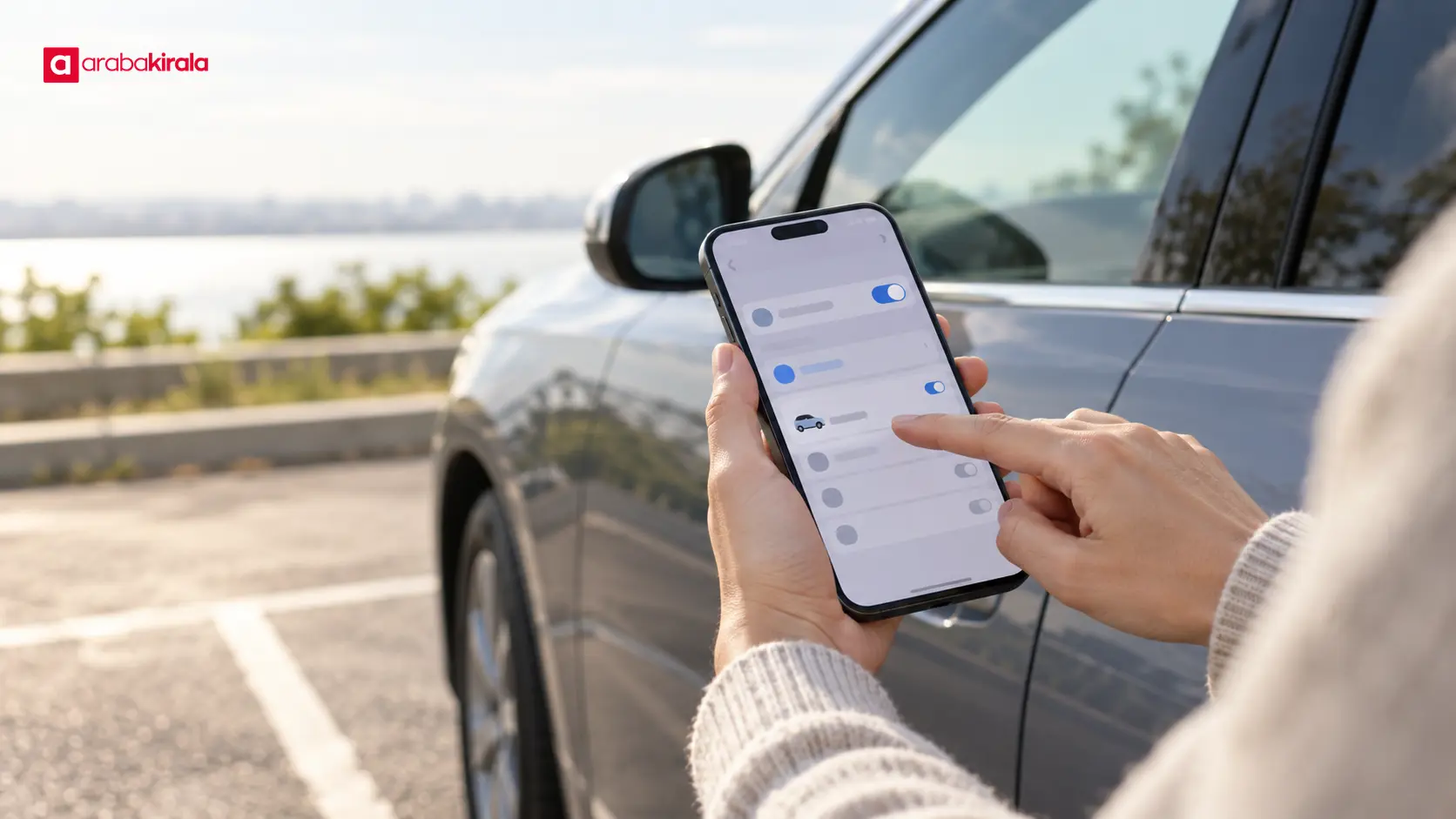
You can also remove the car from the saved Bluetooth devices on your phone. That can help prevent your phone from reconnecting automatically later, but it does not by itself clear the pairing stored in the car. Check both sides because each device manages its own saved connection.
3. Review personal information and history
Check sections such as contacts, favorites, recent calls, messages, or media history for information associated with your phone. Some systems import data automatically; others ask for permission on the phone. Follow the owner’s manual to remove visible personal records. On some systems deleting a pairing also removes related data, while other systems manage those records separately.
If you do not see message or call details on screen, do not assume that the system never received any information. At the same time, avoid changing unrelated settings or resetting the whole system just to search for a deletion control. Consult the vehicle manual. If the instructions are unclear, ask the branch where you rented the vehicle how that vehicle’s infotainment system handles user data.
4. Check navigation destinations and user profiles
Navigation systems may retain recent destinations, saved addresses, home or work locations, and favorite places. A driver profile may also keep personalized preferences and, depending on the system, other user information. Remove your own saved destinations or profile through the available controls. A targeted removal is usually more appropriate than restoring all vehicle settings to their defaults.
If you signed into an app with a personal account on the car’s screen, sign out there and close the app session. Removing the app from your phone may not sign you out of a session open in the car. If you saved an account password in the vehicle, review the account’s security settings for active sessions and remembered devices.
USB devices, accounts, and belongings
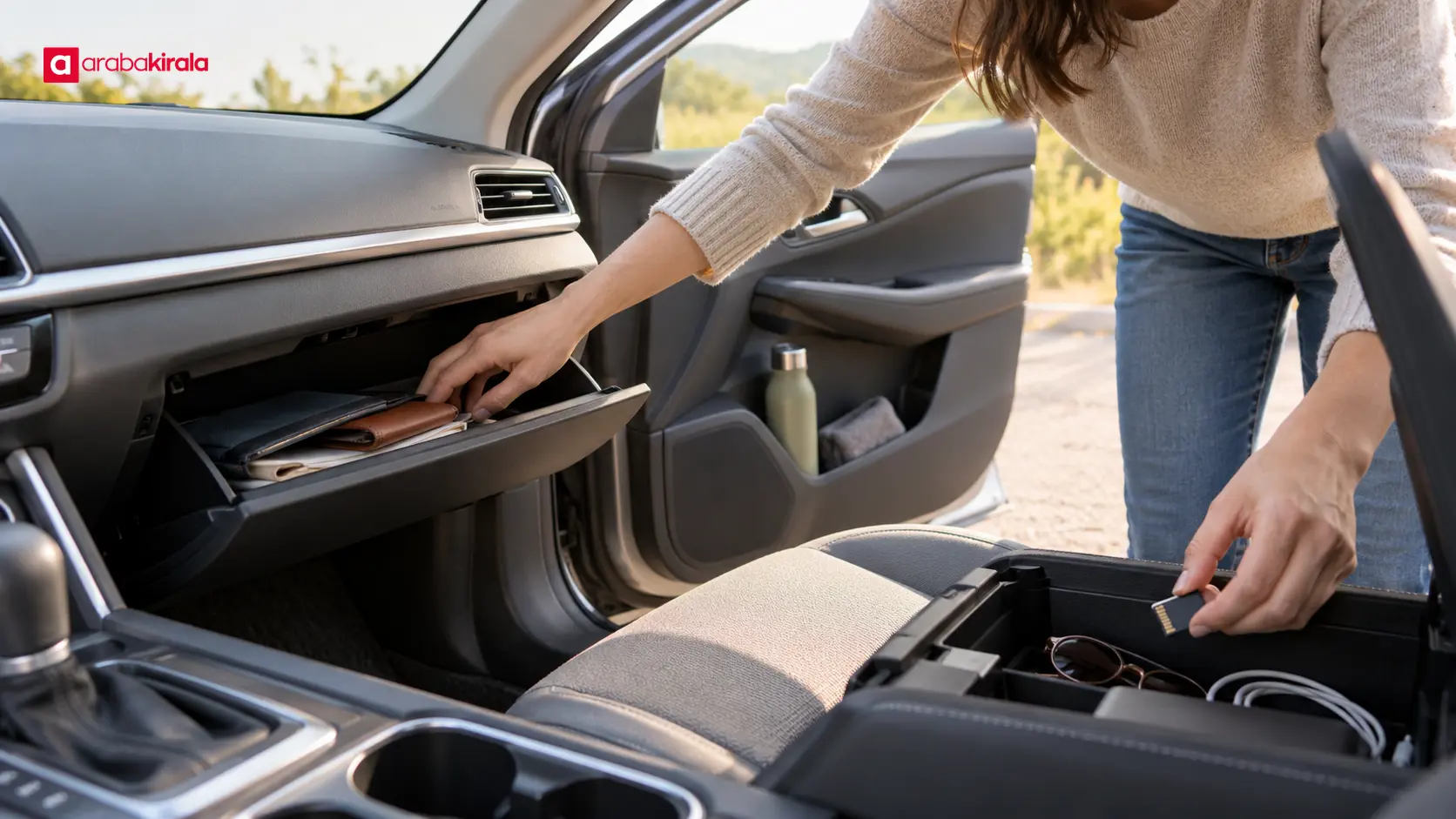
Check for a USB drive, memory card, or charging cable that you connected during the rental. Remove storage devices and make sure your personal files are with you. Before leaving, look between seats, in door pockets, the center console, glove compartment, and trunk for items such as a phone, wallet, glasses, charger, headphones, or children’s belongings. This is a separate part of return preparation, but checking both data and possessions in one pass can help you avoid a follow-up search.
If you used a personal account in a vehicle app, sign out and confirm that your profile is no longer active on the screen. Do not choose a broad reset option if it could affect other drivers’ profiles or vehicle functions. When the manual does not explain the correct procedure, ask the branch handling the return for guidance specific to that vehicle.
A short final checklist
- Confirm that your phone no longer appears in the car’s paired-device list.
- Review the saved car connection on your phone and remove it if you do not want it retained.
- Check contacts, call history, message notifications, navigation destinations, and user profiles.
- Take out USB drives, memory cards, and cables that belong to you.
- Look for personal belongings in the seats, pockets, console, glove compartment, and trunk.
- If you cannot find a deletion control, consult the manual or branch instead of guessing and resetting the system.
The available data and menu paths depend on the vehicle’s system. A few minutes of methodical checking lets you treat the pairing record, personal information, accounts, and belongings as separate items. For a vehicle-specific procedure, contact the branch handling your return; general guidance should not be read as a promise about a particular vehicle or rental arrangement.
Frequently Asked Questions
Does turning off Bluetooth remove the pairing?
No. Turning Bluetooth off prevents a connection for the moment, but it may leave the device saved in the car. Remove the phone from the car’s paired-device list, and consider removing the car from your phone’s saved devices as well.
Will deleting the pairing also delete contacts and call history?
That depends on the infotainment system. Some systems remove data associated with a device when its pairing is deleted; others keep contacts or call records in separate menus. Check those sections individually and follow the vehicle manual.
Should I remove the connection from the car or the phone?
Check both. Removing it from the car targets the record stored in the vehicle. Removing the car from the phone’s saved connections clears that phone-side record and can help prevent an automatic reconnection.
How do I clear navigation history and saved addresses?
Look in the navigation menus for recent destinations, favorites, and saved addresses. Remove only your own entries using the vehicle’s documented steps. If the controls are unclear, ask the branch for guidance instead of performing an unrelated reset.
Should I restore the infotainment system to factory settings?
A broad reset may affect vehicle preferences or other users’ profiles as well as your data. First remove your own pairing, profile, and visible personal records. Use the manual or branch guidance to determine whether a full reset is appropriate for that vehicle.
Do I need to check anything if I never paired my phone?
If you did not pair your phone, there may be no phone pairing record to remove. A brief check is still useful for navigation destinations, user profiles, USB devices, accounts you may have opened, and belongings left in the cabin.
Legal Disclaimer: All content, articles and information on the Araba Kirala website are provided solely to inform users. No information shared on this website constitutes definitive advice or guidance. Araba Kirala Teknoloji A.Ş. and its authors cannot be held responsible for any direct or indirect damages arising from the application of information on the website. For all questions and requests regarding car rental, please contact the office from which you will rent your vehicle.