In-Car Cameras in New Cars: Views, Parking and Settings
Published: November 21, 2026 • Reading Time: 5 min • Last Updated: November 21, 2026 • Author: Merve B.
Contents
- What does a car camera do?
- Driving views, parking cameras, and recording
- Driver assistance cameras
- Parking and rear-view cameras
- Cameras that record footage
- Using parking views safely
- Settings to review
- A brief handover check
- Summary: understand the camera and verify the view
- Frequently Asked Questions
- Related Articles
In-car cameras in new cars do not all serve the same purpose. This guide explains the difference between cameras that show the area around the vehicle and equipment that records footage, how to interpret parking views, and which user settings to review before taking delivery. Features vary by model and trim, so use the display and the vehicle manual together rather than assuming every camera works the same way.
What does a car camera do?
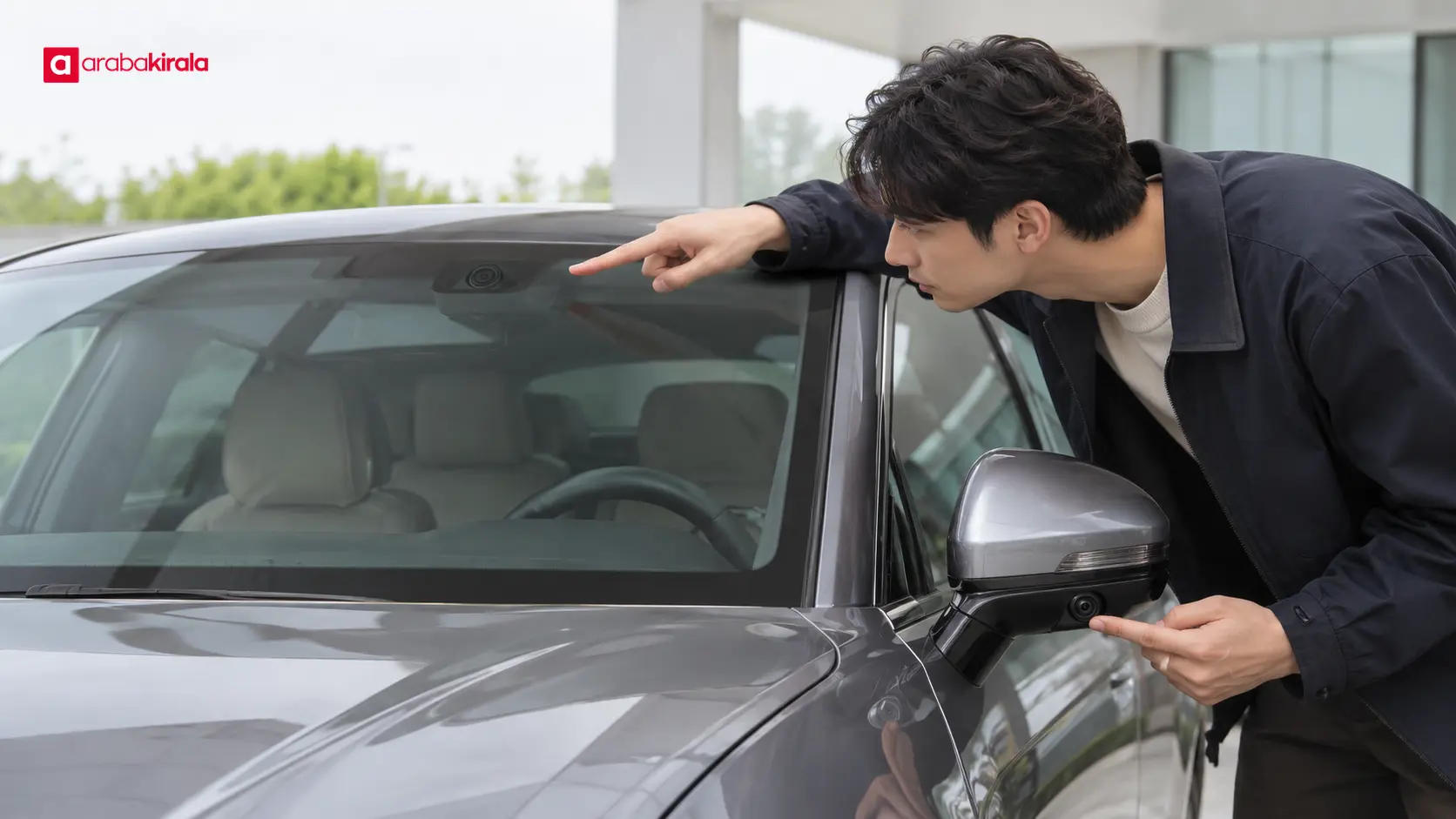
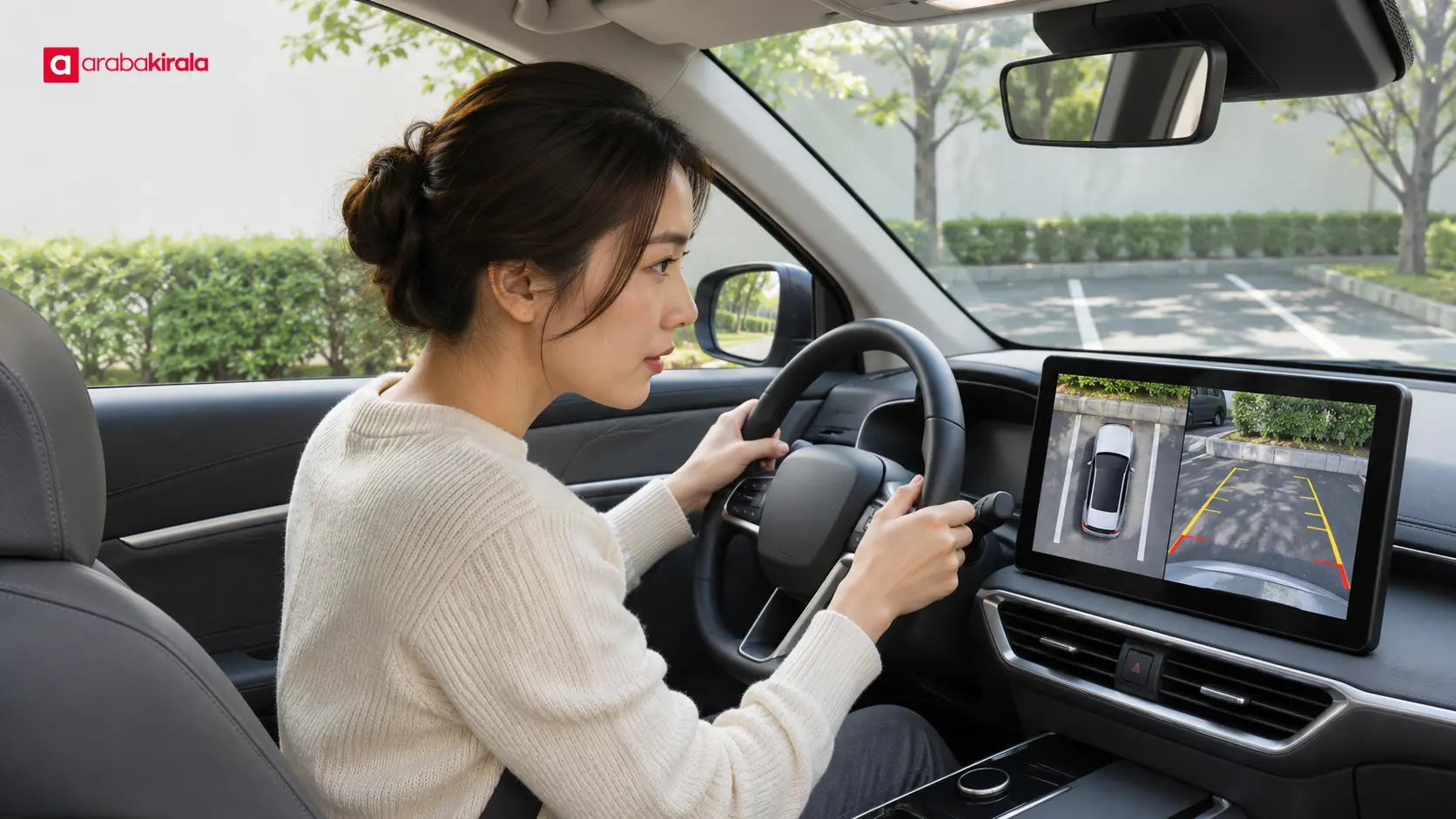
For in-car cameras in new cars, the practical points below should be considered together. A vehicle camera may show the driver an area around the car or provide visual input to a driver assistance feature. A camera near the top of the windshield may be part of systems that help identify lane markings or traffic signs. A rear-view camera brings the space behind the car onto the display during reversing. Some vehicles combine views from several cameras to create a surround view system.
Seeing a live image on the screen does not mean that image is being recorded. A view camera can provide a real-time picture during driving or parking, while recording requires separate equipment, settings, and a way to store footage. Confirm a feature in the vehicle menu or manual instead of inferring it from the screen alone.
Driving views, parking cameras, and recording
Driver assistance cameras
Windshield cameras can provide input to features such as lane support or traffic sign recognition. A camera does not guarantee that the vehicle will detect every condition correctly. Dirt, fog, heavy rain, or direct glare can affect visibility and system performance. Continue watching the road and surroundings, and respond to the vehicle’s alerts.
Parking and rear-view cameras
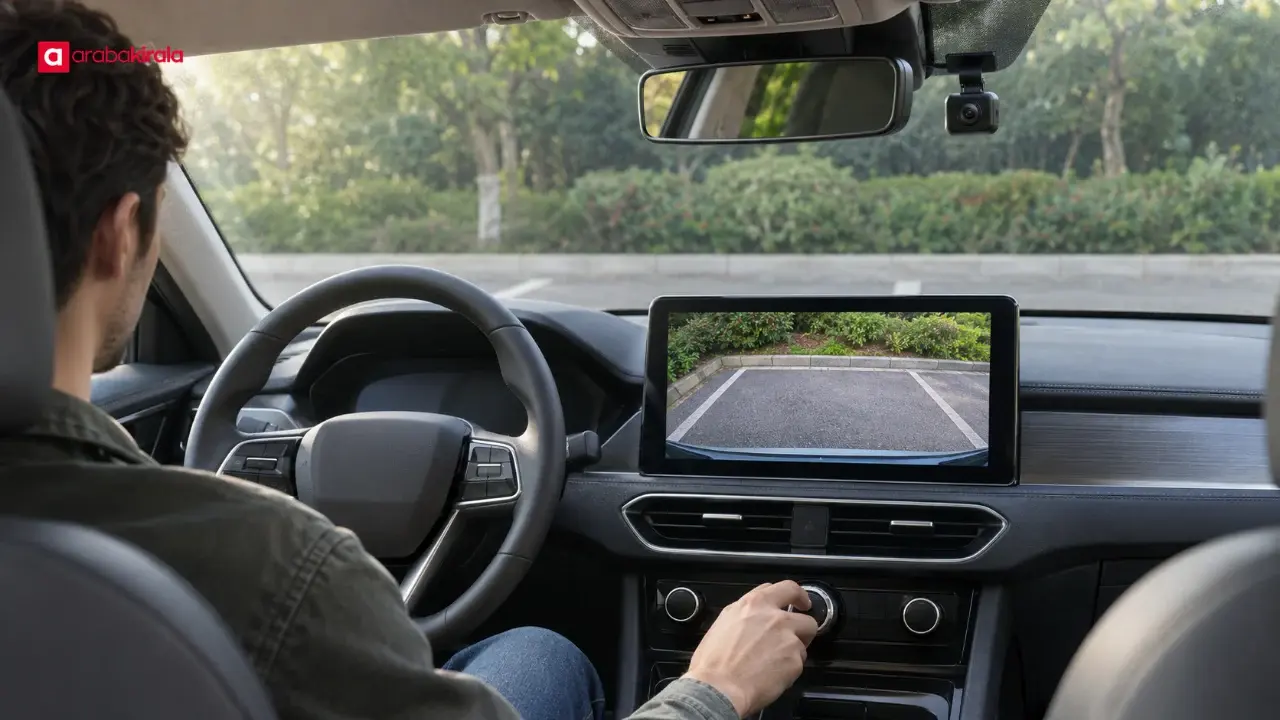
A rear-view camera shows a portion of the area behind the vehicle and can help with reversing. A surround view system combines images from different angles to give a bird’s-eye style impression of the vehicle’s surroundings. Guide lines can help with steering, but they are not precise distance measurements. Perspective can make depth and edges misleading, so check mirrors and look around directly as well.
Cameras that record footage
Recording means that images are stored for a period or in response to an event. It may rely on manufacturer-provided equipment or a separately installed device. Recording coverage, loop deletion, file access, audio capture, and operation while the car is off can differ. Verify these details in the car menu or the device instructions instead of assuming a particular setup.
Using parking views safely
Treat the camera as an additional view, not the only way to check the area. Before reversing, look for pedestrians and obstacles around the car. During the maneuver, glance at the display while also using the mirrors and looking over your shoulder. Guide lines can move with steering input and may not show every part of the vehicle that extends beyond its body.
Rain, mud, snow, or road grime on a lens can make the picture unclear. Check the exterior lens surfaces before driving. Follow the vehicle manual’s cleaning instructions and avoid scraping or using abrasive materials on the lens. If the display goes dark, lags, or shows a warning, stop in a safe place and consult the manual.
Settings to review
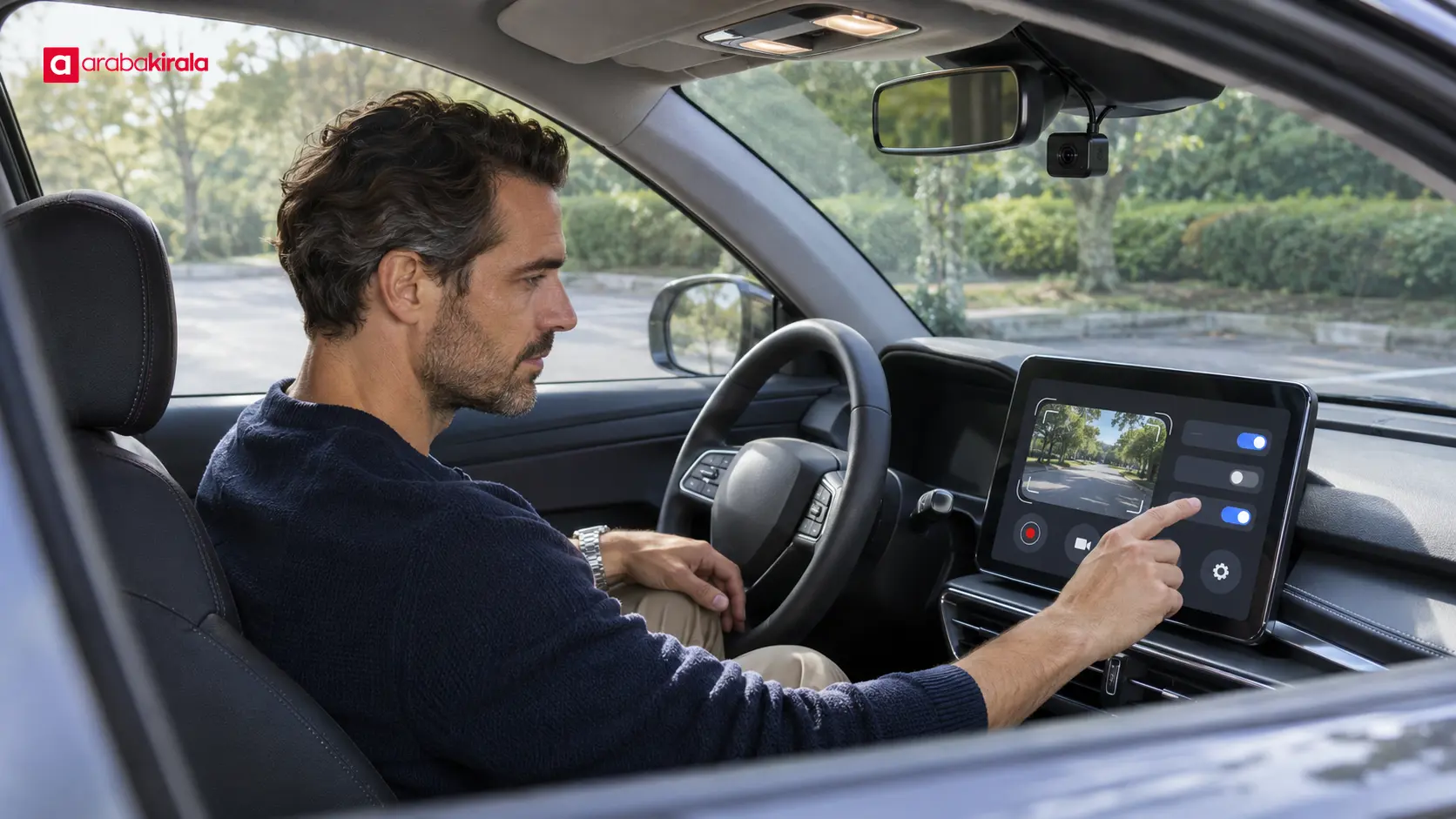
Menu names and options differ between models. While the vehicle is parked, review the camera menus and match them to the manual. These checks can help you understand the system:
- Which view appears when reverse is selected and how to switch between available angles.
- How to enable guide lines, proximity alerts, or surround view, if equipped.
- If recording equipment is present, how recording starts and how footage is stored and accessed.
- Which display alert appears if the camera view is blocked or the system detects a fault.
- If a camera or recording device was added separately, how its power connection and instructions work.
Do not explore menus while the car is moving. Recording, audio, or sharing options can affect how personal images are handled. If the manual does not explain an option, ask the rental branch what equipment is in that vehicle and how its settings work.
A brief handover check
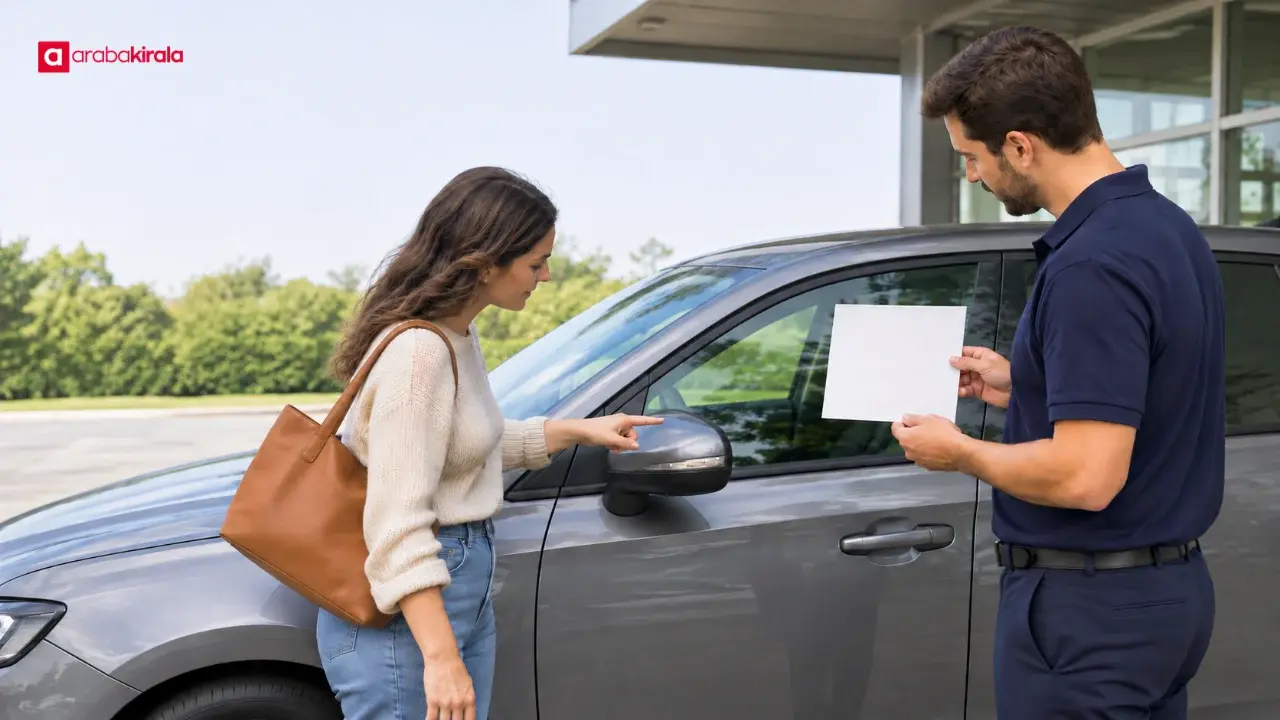
At handover, you can learn the basic camera functions through a simple check while the vehicle is parked. Confirm that the display comes on and the views are clear. Check that the lenses are not visibly dirty or blocked. Tell the handover staff if the screen shows an error. Ask the branch whether recording equipment is present and how access to any footage works; do not assume every vehicle has the same equipment.
If footage is recorded, clarify where it is stored, when it may be overwritten, and whether you need to take any step before returning the vehicle. If a separate device has a memory card or connection parts, ask how to use the equipment provided. Consider privacy carefully before sharing footage that may include other people.
Summary: understand the camera and verify the view
Vehicle cameras can support driver assistance, parking views, or recording, and a live image is not necessarily a recording. Use parking views alongside mirrors and direct observation, keep lenses clear, and check settings in the vehicle manual. For a rental, confirm vehicle or branch-specific details about equipment, recording, storage, and file access with the branch before taking delivery.
Frequently Asked Questions
Does every new car have an in-car recording camera?
No. Parking and driver assistance cameras are different from equipment that saves footage. Equipment can vary by model and trim, so check the vehicle menu and manual.
Does a rear-view camera show everything behind the car?
No. It provides a limited field of view, and some nearby areas may not appear on screen. Use the mirrors and direct observation, and check the surroundings before maneuvering.
Can I judge distance from the lines on a parking camera?
The lines are visual aids for maneuvering, not precise distance measurements. Screen perspective can make objects look differently positioned, so move slowly and keep checking the area.
Why might the camera image look blurry or dark?
Dirt, water, or snow on the lens can affect the image, and lighting conditions also matter. Stop somewhere safe, check the lens and any display alerts, and follow the manual’s cleaning instructions.
How can I find out whether a rental car records camera footage?
Review the vehicle menu and manual at handover. Ask the branch about vehicle-specific recording equipment, storage, retention, and how footage can be accessed.