Wireless Software Updates in New Cars: Process and Checks
Published: November 12, 2026 • Reading Time: 7 min • Last Updated: November 12, 2026 • Author: Merve B.
Contents
- What is a wireless update, and what might it affect?
- How does the update process work?
- 1. Read the notice and scope
- 2. Check that the car is ready
- 3. Follow the installation instructions
- Preparing for a safe and smooth update
- What should you check after an update?
- How a software update differs from a service visit
- In brief: read, prepare, and verify
- Frequently Asked Questions
- Related Articles
Wireless Software Updates directly describes the main subject covered in this guide. This guide explains what a new car wireless software update notice means, how the process generally works, and what a driver can check at each stage. In-car software supports different systems, from displays and connectivity to selected vehicle functions. Updates do not all affect the same features; their scope and steps depend on the car’s model, equipment, and manufacturer instructions.
For Wireless Software Updates, the practical points below should be considered together. A wireless update is often called an over-the-air, or OTA, update. The basic idea is that an eligible software package reaches the vehicle over a network rather than through a wired service connection. The term does not mean every program in every car can be changed remotely. When a notice appears, begin by reading its explanation alongside the owner’s manual so you understand what the particular update covers.
What is a wireless update, and what might it affect?
Modern vehicles have multiple electronic control units and software components. Within the scope set by the manufacturer, a wireless package may relate to an infotainment system, connected services, map data, or another compatible component. These are examples, not a promise that every update changes those systems. The update notes should identify the affected components.
An update may add a feature, change how an existing feature behaves, or include software stability adjustments. For drivers, the useful approach is to read the official description rather than infer results from a package name. If the notice concerns a system related to vehicle safety, follow the on-screen directions and the manufacturer’s technical information carefully.
How does the update process work?
1. Read the notice and scope
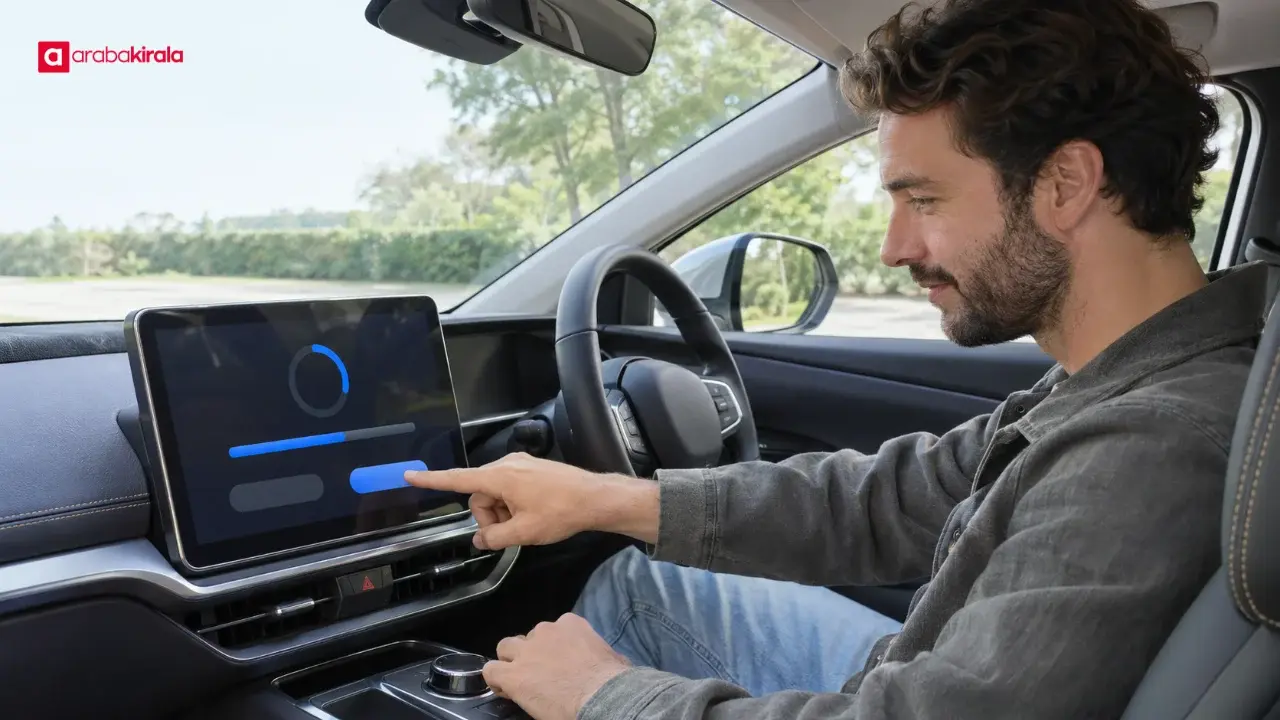
The vehicle display or an interface provided by the manufacturer may notify you when a new version is available. The notice may show a version, a change summary, an estimated duration, or conditions to meet before proceeding; these details can vary by car. Before accepting, find out what is changing, whether the car can be driven during the process, and when installation is meant to start.
If a notice seems unexpected or unclear, check the update section of the owner’s manual and the manufacturer’s official support information. Do not share personal details through an alert or link until you have confirmed it. Make sure the requested connection method matches the one described in the vehicle documentation.
2. Check that the car is ready
An update may require the car to be parked, a particular power or battery condition, or a network connection. Requirements differ by model and package. Do not assume one set of conditions applies to every car; follow the display and manual. For an electric or hybrid vehicle, use the manufacturer’s instructions if they specify an energy requirement for the process.
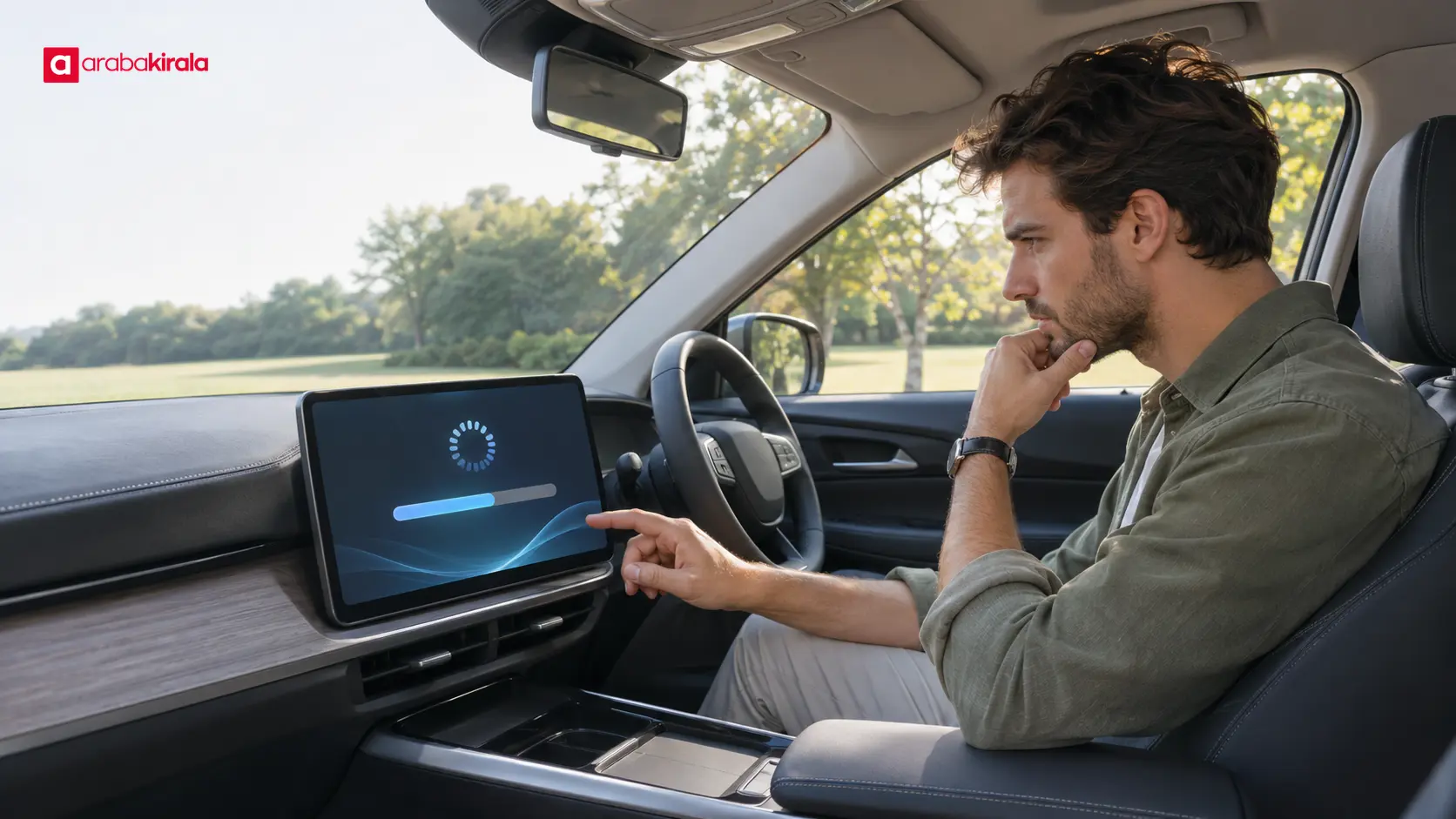
Downloading and installing are separate stages. A package may first arrive through a connection and then enter an installation phase in the car. Do not guess what happens if the connection drops, the vehicle goes to sleep, or you postpone installation; consult the documentation for your model. Check your schedule beforehand so you have time available if the car cannot be used for a period.
3. Follow the installation instructions
During installation, some vehicle functions may be temporarily unavailable or the car may need to remain stationary; this is not identical for every update. If the display instructs you not to drive, start the process only in a safe, permitted parking place. Do not begin an installation in traffic, at a narrow roadside, or where the car would obstruct others.
Do not assume it is safe to switch off the display, start the car, or interrupt installation. Follow the manufacturer’s directions. If an unexpected error appears, record its wording and consult the support route given in the manual. Follow the vehicle’s guidance instead of making repeated attempts to clear an error.
Preparing for a safe and smooth update
- Location: If the instructions require the car to stay parked, choose a safe place and keep it clear of moving traffic.
- Time: Read any duration estimate and plan a period when you do not need the car. An estimate is not a guaranteed finish time.
- Connection: Confirm the required connection type and coverage conditions in the vehicle documentation. Avoid entering sensitive account details on an unfamiliar or untrusted network.
- Power: Follow the manufacturer’s explanation if it specifies a battery or electrical-system condition. Do not assume a universal percentage threshold.
- Change notes: Review any features the update says it adds, changes, or removes. Menu locations and control names may shift.

What should you check after an update?
Wait for an on-screen message confirming completion. If no result appears, do not assume you should restart the car or take another step; follow the post-installation guidance in the owner’s manual. If an error persists, note its text and the displayed version, then contact the manufacturer’s official support channel.
Before everyday use, check the functions mentioned in the update notes while the vehicle is safely parked. Do not explore menus while driving. If a screen layout, device pairing, or preference has changed, set it up again using the manual. If the update notice mentions a change to a driver-assistance system, read the vehicle’s explanation carefully and remember that the driver remains responsible for safe driving.
If a feature does not behave as expected, record what happened instead of repeatedly restarting the update. The error shown, the affected function, and whether a completion message appeared are concrete details that can help technical support. Do not modify vehicle software or install unofficial files to try to fix the issue.
How a software update differs from a service visit
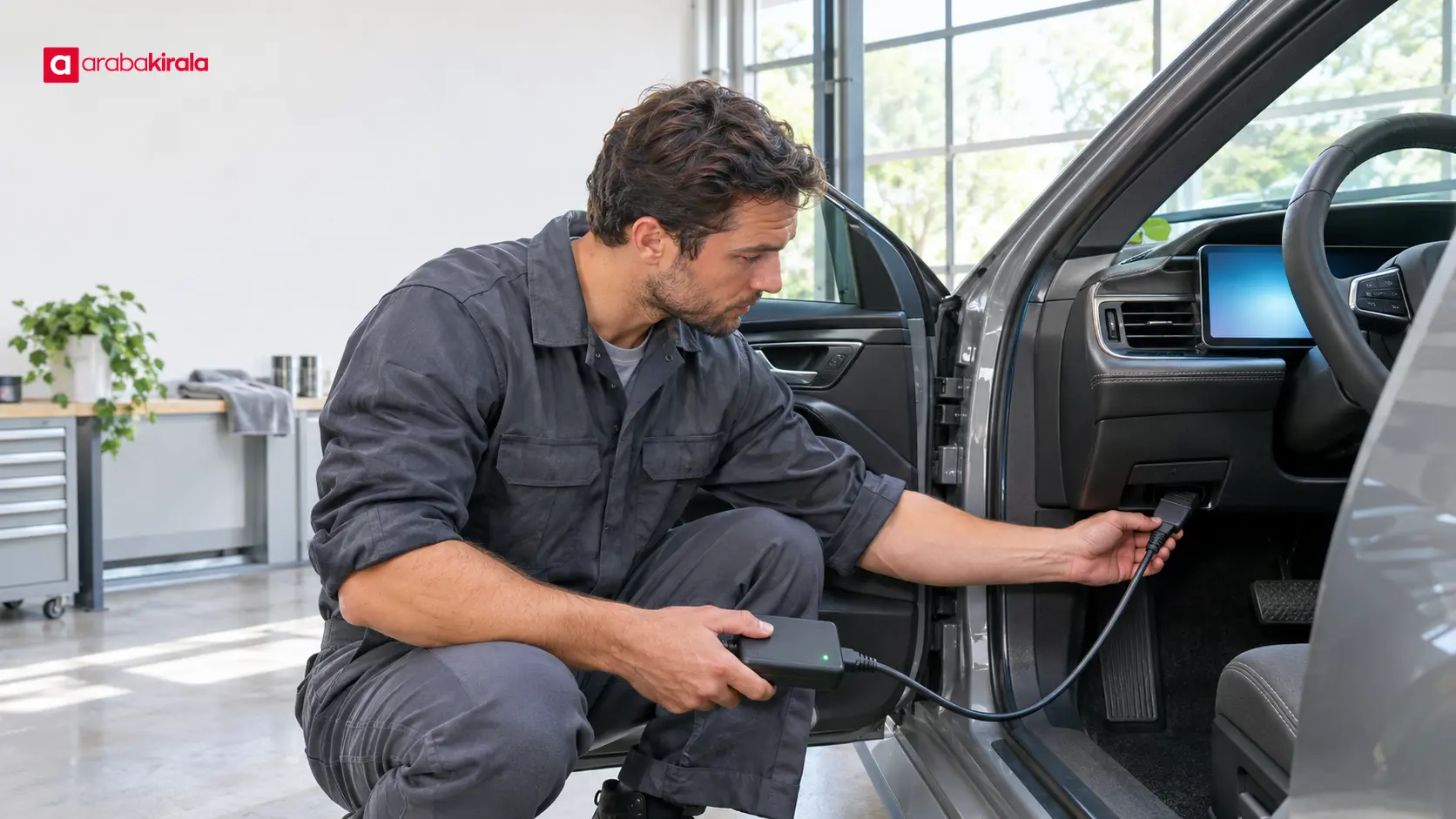
A wireless update delivers an eligible software package through the vehicle’s connectivity system for installation according to the car’s instructions. A service visit may involve a physical inspection, parts work, or a specific diagnostic procedure set by the manufacturer. Not every software concern can be resolved over the air; some work may require a workshop.
This distinction helps you report a problem through an appropriate channel. If the display says installation did not complete, follow the digital process in the manual. If there is a physical symptom, a recurring fault alert, or a condition that affects safe operation, avoid stressing the vehicle and seek direction from the manufacturer’s support service.
In brief: read, prepare, and verify
The best preparation for a new car wireless software update is to understand the package scope, confirm the conditions for your model, allow enough time in a safe parking place, and check for a completion message. The vehicle display and official owner’s manual are more relevant than a general rule about all cars.
As a next step, read the version and change notes in your vehicle’s update notice. Verify any unclear connection, power, or use requirements in the manufacturer’s documentation. If installation fails, save the error information and pass it to official support.
Frequently Asked Questions
Does the car need an internet connection for a wireless update?
The download stage may require a connection; the connection type and conditions for continuing installation vary by vehicle. Follow the method described in the display and owner’s manual.
Can I drive the car while an update is installing?
That depends on the update and the vehicle’s instructions. If the display tells you to keep the car stationary or avoid certain functions, wait in a safe parking place. If you are unsure, review the instructions before starting.
Does every wireless update add a new feature?
No. A package may introduce a feature, change an existing one, or include software adjustments. The release notes should explain the stated changes.
What should I do if installation takes a long time or stops?
First read the displayed status and any error message. Restart or retry only if the vehicle manual recommends that step; otherwise, record the error and contact official support.
Should I check vehicle settings after an update?
If the update notes say that menus, connectivity, or particular functions are affected, review those areas while parked. Do not interact with the display while driving, and follow the manual.